From handling small details to assessing the bigger picture, event planning requires the alignment of many moving parts. That’s why you need a workflow template for event project management.
Wrike offers more than a simple event planning checklist template — we have created a coordination, management, and scheduling system suitable for virtual and in-person events.
Use the template to break events down into stages, coordinate schedules, manage due dates, assign tasks, track their progress on a visual timeline, and oversee the event budget. With an interactive Gantt chart, dynamic calendars, and multiple work views, our event management plan template’s features are unmatched, even by dedicated events management software.
Explore Wrike’s event project management features today and find out how they can benefit your team.
Build clear timelines
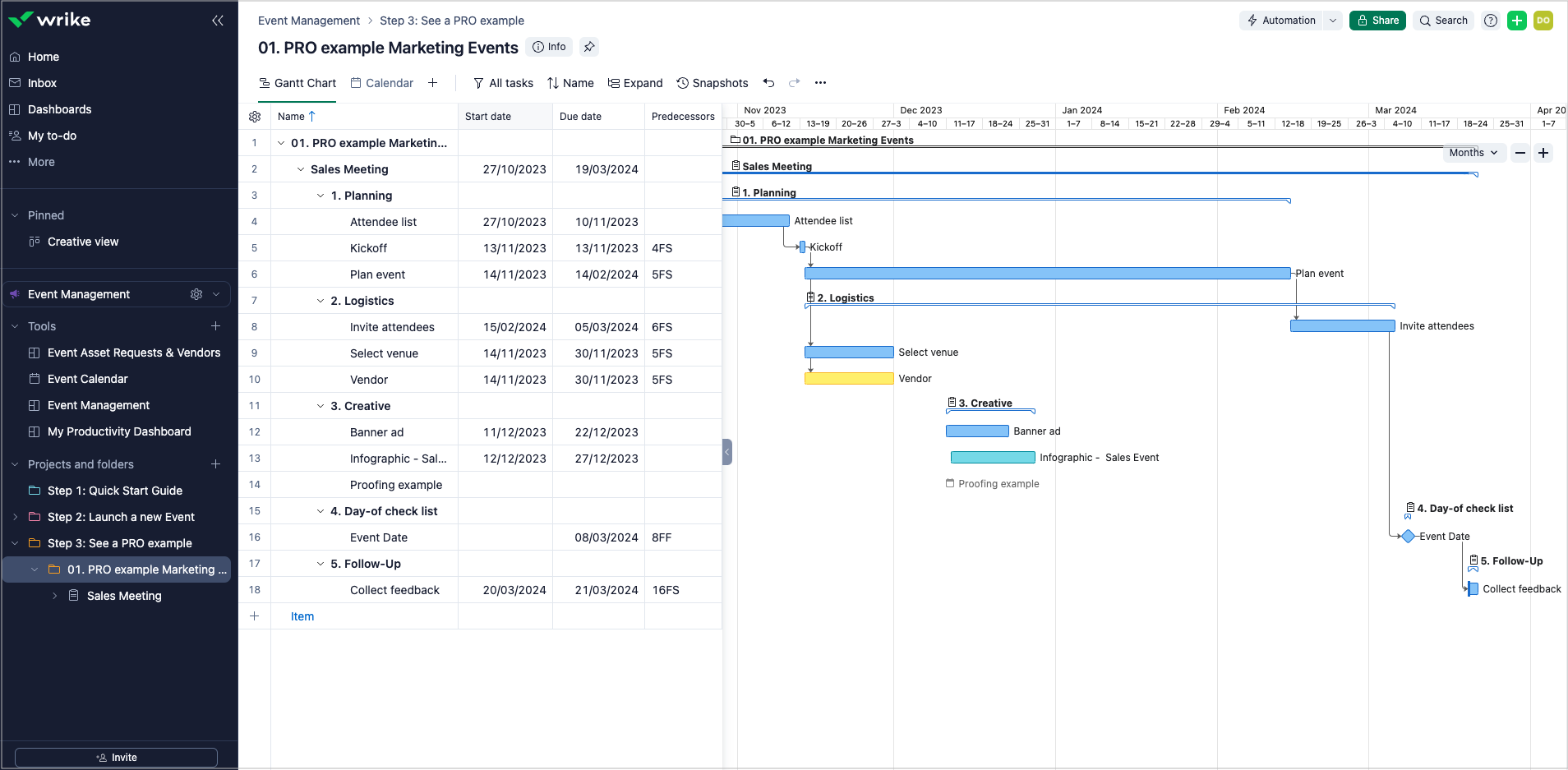
Oversee multiple tasks to ensure your event is on track. Monitor your project progress with a versatile Gantt chart view, which lays out the timeline, dependencies, deadlines, and milestones of the event.
Assign tasks instantly
No event manager can do everything at once — that’s why you need to break down the planning stage into actionable tasks and assign them to various team members, from finance to marketing.
Manage events from anywhere
House all event-related details, tasks, documents, and deliverables in Wrike. Use our mobile app when on the go, and integrate with other apps to keep all event information in a centralized location.
View multiple calendars at once
Use Wrike’s calendars to connect tasks and streamline your event planning. Each team calendar is color-coded, so you can easily view different workloads and delivery dates at a glance.
Event calendar Sync all your company events to one shared calendar. Select filters to view event tasks for a specific team or department, e.g. Marketing. Learn more about Wrike’s calendars.
Gantt chart view Use our Gantt chart view to monitor your event timeline. Add milestones and due dates to keep your event on track. Explore the functionality of our Gantt chart software.
Request form Capture all the details you need to start working on your event. Our request form can be shared with external stakeholders and used as an event brief. Read more about dynamic request forms.
Custom workflows Our space-level workflows reflect the unique statuses of your project’s lifecycle. Use separate workflows for your creative and event management teams. Find out more about custom workflows.
Event asset requests and vendors dashboard Tired of losing file versions or misplacing vendor contact details? Bring your creative asset requests and vendors together to access the event info you need in one click.
Event management dashboard Track task statuses — including Not Started, Overdue, High Priority, and Unassigned — to ensure you hit your event deadlines. Experience the power of Wrike’s project dashboards.
Productivity dashboard View all the work assigned to you in one place. This personal productivity board highlights your most important tasks, including those pending review and due soon.
Custom item types Manage your unique requirements with custom item types. Our event-specific item types include Vendors, Assets, Brochures, and Booth Graphics. Discover more on Wrike’s custom item types.
How to use Wrike’s event planning template
Wrike’s event management plan template includes pre-built folders to help you navigate the process, so you can start managing a real event today.
We have created an extensive guide to help you with the five stages of event management:
Stage 1: Planning
Break down the event planning stage into actionable items called tasks. Tasks can be assigned to one or more members of your team. This event schedule template includes some sample tasks that can be renamed or deleted as needed.
If your team member isn’t in Wrike yet, simply add their email address, and an invitation to join Wrike will be sent to them.
Stage 2: Logistics
Use the Gantt chart view to get an overview of project progress on an interactive and dynamic timeline. This high-level view can help you spot any bottlenecks or roadblocks to ensure you meet your deadlines.
From the Gantt chart, you can drag and drop tasks to adjust deadlines and dates. Our project timeline automatically adjusts everything around your changes, and all adjustments are automatically shared with your team.
Stage 3: Creative
Wrike has 400+ integrations, including Adobe Creative Cloud. This means you never have to leave the apps you love and don’t have to worry about constantly switching tools and disrupting your workflow. Other extensions include MediaValet, Google Drive, and Microsoft One Drive.
You can shorten your approval process in Wrike with built-in proofing software, where all comments and edits are done in one place. Use Wrike to add comments directly to images, videos, PDFs, and Microsoft Office files.
Create a shared workspace that’s accessible to internal and external teams. Collaborators can use the workload view to check each person’s tasks and deadlines and balance out projects accordingly.
Stage 4: Event
Break each project down into subfolders for every major initiative, or every team’s area of responsibility. Alongside organizing work by timeframe, this system keeps all important information together.
Each team can set their own deadlines and work in parallel with the rest of the event crew. You can use the Gantt chart view to set task dependencies, highlighting which tasks are interconnected.
Stage 5: Follow up
Plan important follow-up marketing campaigns at this stage of the event planning process. Build customizable reports to gather the performance data you need from your tasks and projects.
Event management resources
Plan successful events with Wrike’s helpful assets.
The event management planning template is for teams who need to coordinate the big and small details of their events. The template is especially useful for event managers who need more than a basic checklist.
Planning a live or online event is a complex process. With many moving parts and tricky timelines to consider, a spreadsheet does not have the features needed to assess adjustments in real time — one-click Gantt charts, easy rescheduling, automatic notifications, and file attachments, just to name a few. Clunky or outdated spreadsheets can present significant challenges. Wrike’s event project management template makes things simple.
Yes, this event management plan template is suitable for virtual events. The five sample stages included in the template cover planning, logistics, creative, event, and follow-up. These can all be used to organize tasks needed for a virtual event.
This event planning template is free to use as part of Wrike’s two-week trial. No need to purchase — simply enter your email address and begin planning your next event.
Tracking task accountability with the event management template is simple. Create tasks and assign them to individual team members. Then use the preconfigured dashboard to check task statuses at a glance.
You might be interested in these templates
Marketing Calendar
Plan a comprehensive marketing activity schedule with this marketing calendar template. Keep your tasks and team organized with Wrike.
Product Launch
Plan and execute a successful product launch. Break product launches down into phases, assign due dates to tasks, and track progress on a visual timeline.
Marketing Campaign Management
A basic template for classic, timeline-driven campaign planning. Organize marketing campaigns into actionable items, assign due dates, and track progress on a Gantt chart.
Marketing Calendar
Plan a comprehensive marketing activity schedule with this marketing calendar template. Keep your tasks and team organized with Wrike.
Product Launch
Plan and execute a successful product launch. Break product launches down into phases, assign due dates to tasks, and track progress on a visual timeline.
How to install this template in your account
You can only access this template when you create a new space. You can access the use case templates gallery through the space creation wizard. When you opt to create a new space, the template gallery opens by default.
Click the “+” button in the upper-right corner of your workspace.
Select “Space.”
On the page that opens, hover over the use case you want and click “Preview.” Look for the “Event Management” template in the list (use the search bar if needed).
Now, you can see more information about the use case. Click “Select” to create a space.
Yes, there are.
To use this template, you need to have at least the Business plan or up. Check our plans here.
You must have the required permission to create a public space in your account.
If the template contains account-level custom fields, custom item types, workflows, request forms, or automation, you must have the permission required to create those items.
This template is only available when the workspace language is set to English.
Check the prerequisites above. If you don’t match one of the prerequisites, talk to your space admin or your account owner. If you match all the prerequisites and you still can’t see the “Event Management“ template, feel free to reach out to the Wrike support team.
Unlock the power of Wrike’s templates
Use our smart search tool to explore versatile templates, designed for easy customization and streamlined project management.
Wrike enhances its website search experience using Google's Vertex AI Search and Conversation generative AI service. Users are cautioned that generative AI might produce inappropriate, inaccurate, offensive, or unintended results, and are advised against submitting explicit, harmful, offensive, or illegal content as search input. Neither Wrike nor Google uses your search inputs to train its machine learning models or for advertising purposes, but search activities may be collected and/or stored via cookies in accordance with our Privacy Policy if you previously registered on our website. These cookies can be deleted through your browser settings. Wrike's search service is not designed to be used in connection with your personal data or any sensitive data of any kind, which users must refrain from inputting.