Being a project manager can be exhausting. How do you keep track of multiple tasks, projects, and teams, ensuring everything gets delivered on time? For your business to be successful, you need to stay organized.
You should consider using an online calendar planner if you struggle with:
Creating a monthly plan
Categorizing projects by team
Spotting overdue tasks
Wrike’s monthly planner template could be the solution you’ve been looking for.
Map out all your projects with a monthly schedule maker
Get a company-wide view of all team projects
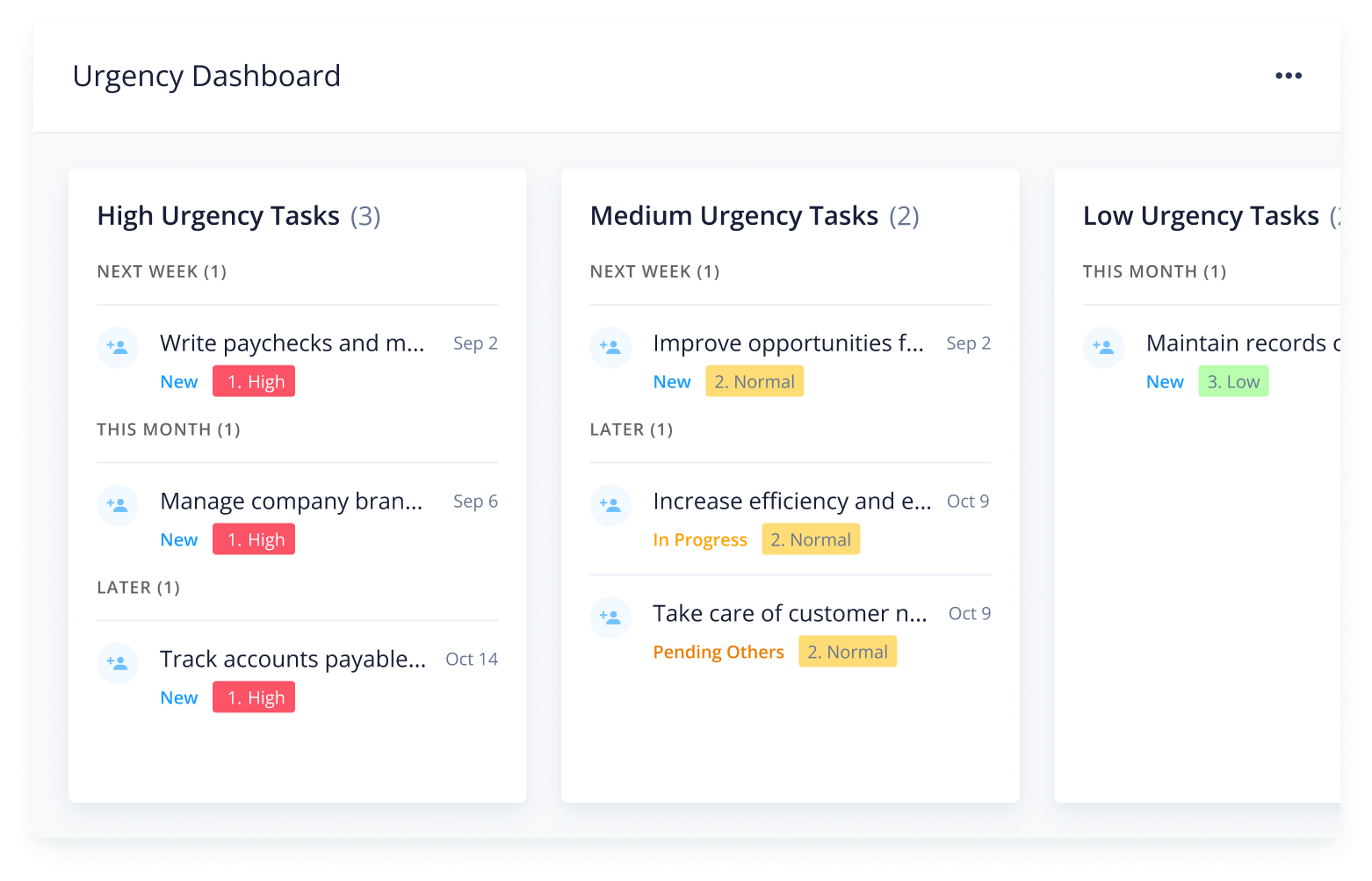
Prioritize tasks by urgency and identify delays instantly
Why you need the monthly planner template
Achieve task clarity
Wave goodbye to poor task categorization. With Wrike’s simple folder structure, cross-tagging, and color-coding, you get a crystal-clear overview of your monthly workload. Organize tasks by status, urgency, and team.
Boost team collaboration
Working in silos can negatively impact your teams’ productivity. Eliminate this issue with a shareable online calendar planner. Give each stakeholder a full view of active team projects so they can collaborate better.
Ensure on-time delivery
Overdue tasks can set your entire project back. With Wrike’s monthly planner template, you can easily assess which tasks are time-sensitive and ensure they are prioritized. Track multiple deadlines at once to hit every target.
So, now you’re ready to use the monthly planner template in your Wrike workspace.
Luckily, this template is highly intuitive — all you need to do is follow these three steps to get your new online calendar planner up and running.
Step 1: Submit your request
Search for the in-built request form, which is labeled “Monthly Planner.” Enter the task name, start and end date, and the team that will perform the task.
Include the urgency level and any additional comments before submitting the form. It will now appear as a task in your “Monthly Planner” space.
Step 2: Track team progress
There are individual folders for each department (Finance, Human Resources, Sales, etc.) Tailor these to suit your organizational structure and add relevant projects.
View all team projects at a glance using the color-coded calendar. You can also get a bird’s-eye view of company-wide projects with the “Teams” dashboard.
Step 3: Prioritize your workload
Use the “Task Status” dashboard to monitor tasks as they move through various stages, from “New” to “In Progress” to “Completed.” Your “Urgency” dashboard will identify high-priority tasks, so you know which ones to focus on first.
The monthly planner template also includes an in-built “Overdue Tasks” report to help you address delays quickly.
More than a monthly schedule maker
Now you know how to use the monthly planner template, you can explore the rest of Wrike’s versatile platform to see what other project management tools we offer.
Here are some features that can help you optimize your resources, manage your team’s workload, and deliver projects on time:
This template enables users to take control of their monthly planning, prioritize high-urgency tasks, and monitor team progress at a glance.
The monthly planner template includes an in-built request form, calendar, report, and three dashboards, as well as sample folders and projects.
This template is designed for project managers who want to streamline multiple team schedules and create a clear overview of monthly tasks.
How to install this template in your account
You can only access this template when you create a new space. You can access the use case templates gallery through the space creation wizard. When you opt to create a new space, the template gallery opens by default.
Click the “+” button in the upper-right corner of your workspace.
Select “Space.”
On the page that opens, hover over the use case you want and click “Preview.” Look for the “Monthly planner” template in the list (use the search bar if needed).
Now, you can see more information about the use case. Click “Select” to create a space.
Yes, there are.
To use this template, you need to have at least the Business plan or up. Check our plans here.
You must have the required permission to create a public space in your account.
If the template contains account-level custom fields, custom item types, workflows, request forms, or automation, you must have the permission required to create those items.
This template is only available when the workspace language is set to English.
Check the prerequisites above. If you don’t match one of the prerequisites, talk to your space admin or your account owner. If you match all the prerequisites and you still can’t see the “Monthly planner“ template, feel free to reach out to the Wrike support team.
Unlock the power of Wrike’s templates
Use our smart search tool to explore versatile templates, designed for easy customization and streamlined project management.
Wrike enhances its website search experience using Google's Vertex AI Search and Conversation generative AI service. Users are cautioned that generative AI might produce inappropriate, inaccurate, offensive, or unintended results, and are advised against submitting explicit, harmful, offensive, or illegal content as search input. Neither Wrike nor Google uses your search inputs to train its machine learning models or for advertising purposes, but search activities may be collected and/or stored via cookies in accordance with our Privacy Policy if you previously registered on our website. These cookies can be deleted through your browser settings. Wrike's search service is not designed to be used in connection with your personal data or any sensitive data of any kind, which users must refrain from inputting.