Whether you’re managing an Agile, Waterfall, or hybrid project, you must organize your tasks accordingly. Without the right structure in place, things can quickly unravel.
Tasks don’t get filed correctly, and it’s unclear what different remote teams are working on
There is no visual overview of project due dates and priorities
Project managers become so preoccupied with team tasks, they forget to manage their individual duties
With Wrike’s strategic action plan template, you can overcome these obstacles with ease.
Create separate folders for each department to categorize tasks effectively
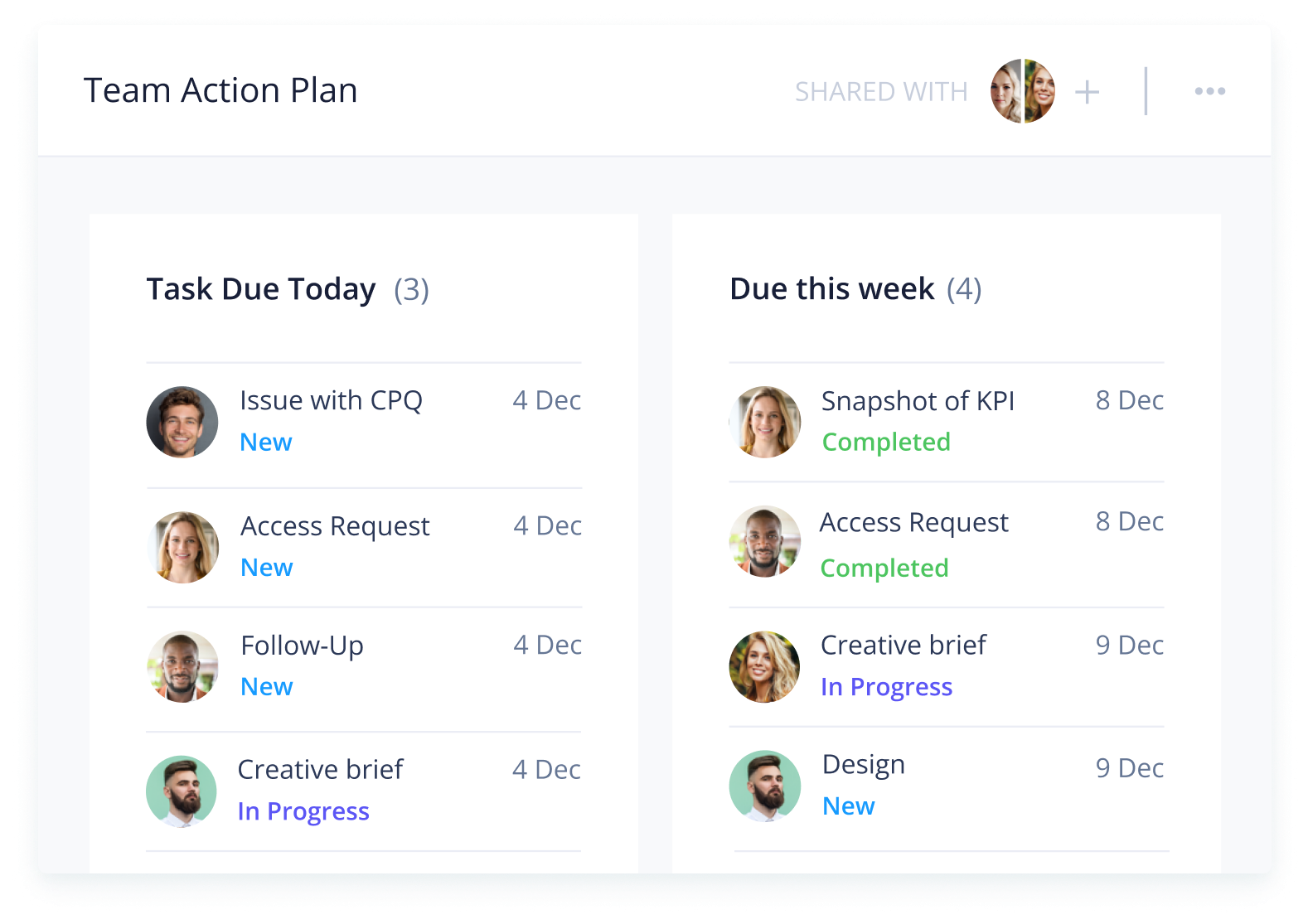
Use dashboards to view tasks by day, week, month, quarter, and so on
Monitor individual tasks with a personal action plan template
Why you need this template
Great visibility
Get full transparency with multiple project views, including List, Board, Table, and Gantt.
Organized tasks
Use folders to sort tasks by team or department. Move easily from “To Do” to “In Progress” to “Completed.”
Schedules on track
Monitor due dates with tailored dashboards. See at a glance what’s due today, this week, and further ahead.
Create task dependencies and project milestones with Gantt charts
Monitor project progress with personalized dashboards
Wrike’s business action plan template is easy to use. All you need to do is follow these three simple steps:
Step 1: Organize tasks
Once you have prepared your project requirements, you can create tasks in your Wrike workspace. Use the tagging feature to add specific tasks to their corresponding folders.
For example, all customer-related tasks could be added to the Customer Support folder. Add separate folders for each team or department in your organization, e.g., Global Delivery or Operations.
Step 2: Build timeline
Now your tasks are categorized and assigned to the correct teams, you can build out your project timeline. Add due dates to each task and use the Gantt chart view to get a clear overview of key milestones.
Need to adjust a deadline or task dependency? Simply use the drag-and-drop builder to make instant changes and automatically update your project team.
Step 3: Monitor progress
It’s important to conduct regular progress reviews to ensure your project stays on track to meet its deadlines. With shared team dashboards, you get an instant overview of daily, weekly, monthly, and quarterly tasks.
This will enable you to spot any overdue or unassigned tasks quickly. You can also create a personal dashboard to monitor your individual tasks.
Streamline your task management with Wrike
Want to explore some more? Wrike’s powerful task management software has a range of versatile tools to help you take projects from start to finish. Our customizable features include:
Wrike can be tailored to suit any project, team, or organization. Personalize your action plans and design your workspace to match your team’s processes. Our platform is built to work your way — not the other way around.
Resources for project managers
The Estée Lauder Companies case study
Read all about how Wrike helped The Estée Lauder Companies automate project management and boost transparency.
Change management eBook
Learn how to tackle change at your organization with this guide, including actionable insights and best practices.
Siemens case study
Find out which Wrike features Siemens used to reduce labor time, increase efficiency, and simplify planning.
The action plan template is a useful tool for project managers who want to conduct regular progress reviews on various tasks and ensure deadlines are met.
Yes, the action plan template is suitable for any type of project. It includes many versatile features, which means you can tailor it to fit Agile, Waterfall, and hybrid projects.
Wrike’s action plan template includes plenty of features to get you started, including pre-built dashboards, sample folders, and a calendar.
How to install this template in your account
You can only access this template when you create a new space. You can access the use case templates gallery through the space creation wizard. When you opt to create a new space, the template gallery opens by default.
Click the “+” button in the upper-right corner of your workspace.
Select “Space.”
On the page that opens, hover over the use case you want and click “Preview.” Look for the “Action Plan” template in the list (use the search bar if needed).
Now, you can see more information about the use case. Click “Select” to create a space.
Yes, there are.
To use this template, you need to have at least the Business plan or up. Check our plans here.
You must have the required permission to create a public space in your account.
If the template contains account-level custom fields, custom item types, workflows, request forms, or automation, you must have the permission required to create those items.
This template is only available when the workspace language is set to English.
Check the prerequisites above. If you don’t match one of the prerequisites, talk to your space admin or your account owner. If you match all the prerequisites and you still can’t see the “Action Plan“ template, feel free to reach out to the Wrike support team.
Unlock the power of Wrike’s templates
Use our smart search tool to explore versatile templates, designed for easy customization and streamlined project management.
Wrike enhances its website search experience using Google's Vertex AI Search and Conversation generative AI service. Users are cautioned that generative AI might produce inappropriate, inaccurate, offensive, or unintended results, and are advised against submitting explicit, harmful, offensive, or illegal content as search input. Neither Wrike nor Google uses your search inputs to train its machine learning models or for advertising purposes, but search activities may be collected and/or stored via cookies in accordance with our Privacy Policy if you previously registered on our website. These cookies can be deleted through your browser settings. Wrike's search service is not designed to be used in connection with your personal data or any sensitive data of any kind, which users must refrain from inputting.