If you own a business or work in a finance department, you know how difficult it can be to monitor costs and stay within budget. From office expenses to employee travel to social gatherings, there’s a lot to keep track of.
You should consider using an online budget tracker if you need some help with:
Completing expense forms
Gathering details
Gaining budget visibility
Wrike’s monthly budget tracker template can help you tackle these obstacles.
Use a tailor-made form to ensure all expense details are logged
Organize your costs by category
Get multiple budget views on one platform
Why you need the monthly budget tracker
Create a digital hub
No more sticky notes and paper receipts — upload all your expense information to Wrike. Use our online budget tracker as your single source of financial truth, saving you time searching through email threads and filing cabinets.
Visualize your spending
Losing track of costs? Our monthly budget tracker gives you a bird’s-eye view of expenses so you can instantly assess your spending habits. Zone in on specific figures by switching from a month-wide calendar view to a table report.
Stay within budget
However small, cost overruns can have big implications for overall project success. With this budget tracking template, you can regularly monitor your spending to ensure you’ve allocated enough resources for your monthly activities.
So, now you’re ready to use the monthly budget tracking template in your Wrike workspace.
Luckily, this template is highly intuitive — simply follow these three steps to get your new budget tracker up and running.
Step 1: Log your expenses
Search for the ready-made request form, which is labeled “Company Expenses.”
Enter the expense category, type, amount spent, date, and a brief description.
Include any additional comments and then submit the form. You can then choose how to view this information in your “Monthly Budget Tracker” space.
Step 2: Categorize your budget
Wrike’s monthly budget tracker template includes sample folders to get you started:
Meals and Entertainment
Office Expenses
Professional Services
Rent and Leases
Travel
Tailor these folders and their subfolders to suit your organization’s spending habits.
Step 3: Monitor your costs
Get a month-wide view of your costs in the “Monthly Budget Calendar.” Each expense category is color-coded for maximum visibility.
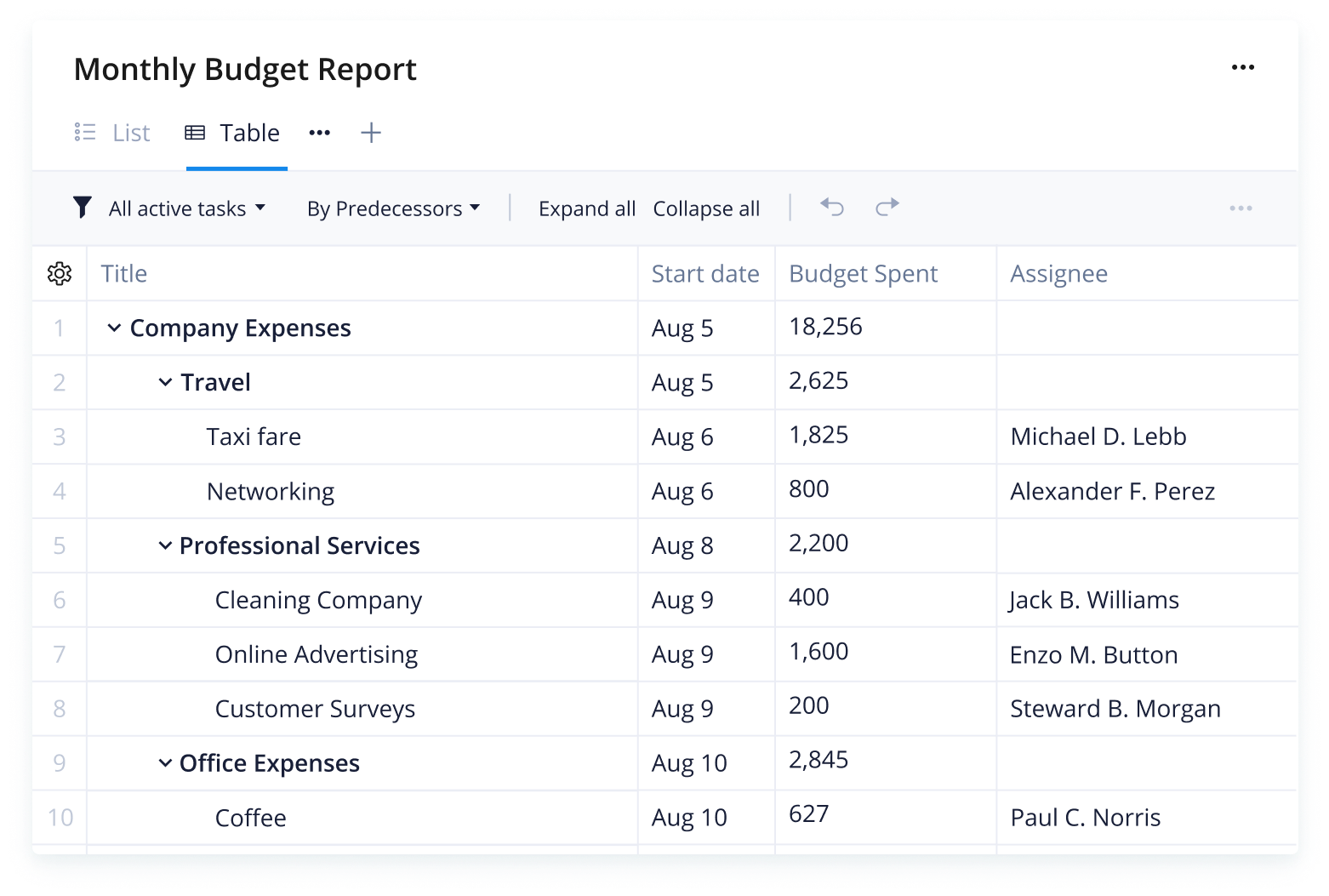
You can also get a breakdown of your expenses in the “Monthly Budget Report.” View budget figures, dates, and assignees at a glance, adjusting details where necessary.
Track more than budgets
As well as the monthly budget tracker template, Wrike also offers a range of other project management tools. Get full visibility into your team’s workload and ensure all deliverables are completed on time.
Here are some features that can help you monitor company resources, task status, and project timelines:
Our versatile task management software has everything you need to simplify your project tracking and guide your organization from one successful month to the next.
Resources for finance managers
Blog post
Want to ensure your projects don’t go over budget? Follow these top tips
Case study
Find out how Umpqua Bank used Wrike to improve reporting and increase vendor visibility
eBook
Learn how to scale your resource management practice with Wrike’s collaborative tools
This template enables teams to log new expenses, categorize these costs, view expense reports, and get a month-wide view of company spending.
Wrike’s monthly budget tracker template includes pre-made folders and subfolders, as well as an in-built request form, calendar, and report.
This budget tracking template is designed for business owners or finance managers who want to streamline costs and get a full overview of their company’s monthly spending.
How to install this template in your account
You can only access this template when you create a new space. You can access the use case templates gallery through the space creation wizard. When you opt to create a new space, the template gallery opens by default.
Click the “+” button in the upper-right corner of your workspace.
Select “Space.”
On the page that opens, hover over the use case you want and click “Preview.” Look for the “Monthly Budget Tracker” template in the list (use the search bar if needed).
Now, you can see more information about the use case. Click “Select” to create a space.
Yes, there are.
To use this template, you need to have at least the Business plan or up. Check our plans here.
You must have the required permission to create a public space in your account.
If the template contains account-level custom fields, custom item types, workflows, request forms, or automation, you must have the permission required to create those items.
This template is only available when the workspace language is set to English.
Check the prerequisites above. If you don’t match one of the prerequisites, talk to your space admin or your account owner. If you match all the prerequisites and you still can’t see the “Monthly Budget Tracker“ template, feel free to reach out to the Wrike support team.
Unlock the power of Wrike’s templates
Use our smart search tool to explore versatile templates, designed for easy customization and streamlined project management.
Wrike enhances its website search experience using Google's Vertex AI Search and Conversation generative AI service. Users are cautioned that generative AI might produce inappropriate, inaccurate, offensive, or unintended results, and are advised against submitting explicit, harmful, offensive, or illegal content as search input. Neither Wrike nor Google uses your search inputs to train its machine learning models or for advertising purposes, but search activities may be collected and/or stored via cookies in accordance with our Privacy Policy if you previously registered on our website. These cookies can be deleted through your browser settings. Wrike's search service is not designed to be used in connection with your personal data or any sensitive data of any kind, which users must refrain from inputting.