Enterprise service management is about standardizing how teams deal with requests across the whole company. But every organization is different, so a one-size-fits-all method won’t meet your unique needs.
Wrike offers the solution you’ve been looking for. Our enterprise service management template is ideal if you face issues with:
Juggling repetitive tasks
Streamlining multiple requests
Managing ongoing change
Wrike’s enterprise service management platform can help you overcome these common challenges, enabling you to:
Automate time-consuming or mundane work
Create custom service requests for departments or teams
Enable and leverage a knowledge base resource to help teams adapt to change
Why you need the enterprise service management template
Consolidated requests
Wrike’s enterprise service management template helps streamline your work with a consolidated request and service management process.
Advanced visibility
Get a 360° view of your enterprise service management teams with dashboards to monitor task progress, tracked incidents, and service requests.
Empowered teams
Equip your teams with the ability to solve their own problems by using this template to enable self-service and build a cross-departmental knowledge base.
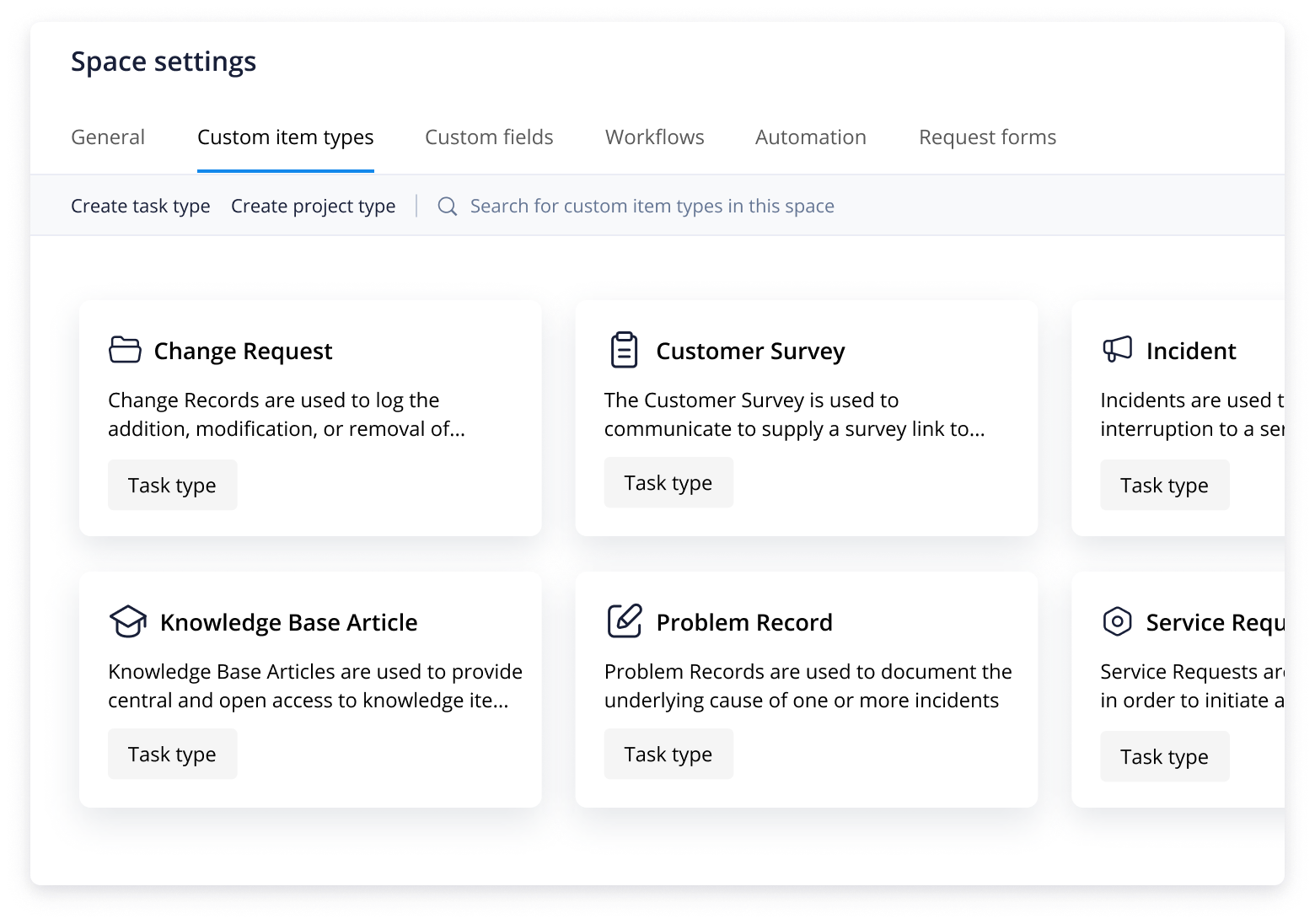
This template has multiple Custom Item Types to get you started, including Service Requests, Incidents, Knowledge Base Articles, Change Requests, Problem Records, Customer Surveys, and Meeting Minutes.
Use Wrike’s enterprise service management template to request the services of a team, create incidents to track team resolutions, and leverage a knowledge base to empower your organization.
Want to try transforming your services with Wrike’s enterprise service management template? We’ve outlined four simple steps to help you hit the ground running.
Step 1: Design your services
Enter the “ESM” Space from your Wrike homepage. There you’ll find a how-to guide, tutorial video, and several subfolders, including one named “Service Design.”
This contains all the steps you need to implement service management across multiple teams. Click to research, build, improve, or expand your organization’s services and track the progress using lists, color-coded calendars, or Gantt charts.
Step 2: Build a knowledge base
Easy access to information reduces the number of tickets raised. Build a knowledge article by adding, organizing, and storing articles in the “Knowledge Base Management” subfolder.
Create custom requests to write articles in response to common queries. Use defined workflows and tools to track article progression through submission, approval, and review across different departments and teams.
Step 3: Execute services smoothly
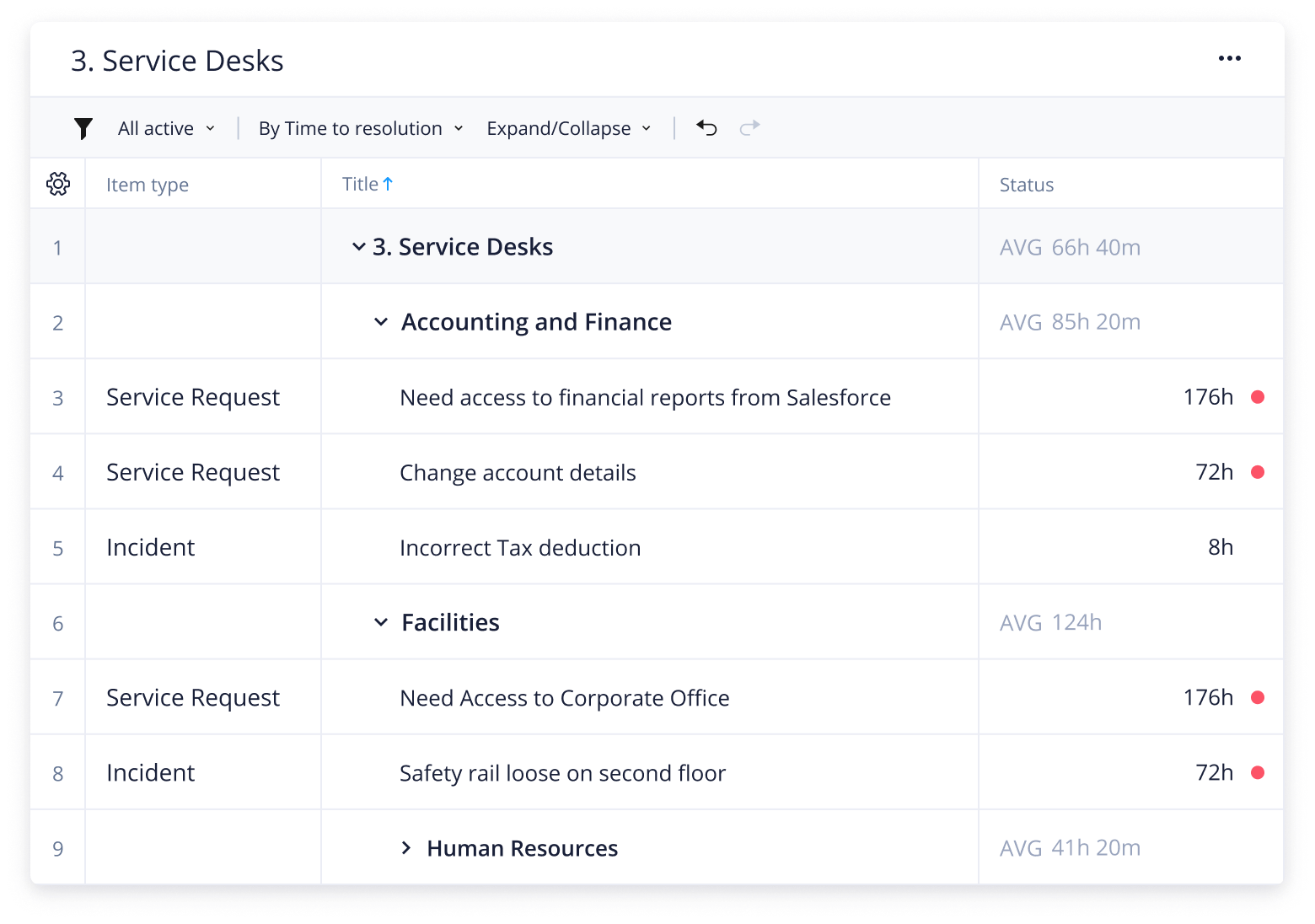
The third folder is called “Service Desks.” This is where you can manage and monitor the various teams that handle tickets in your organization.
Click into a team to view the service items, due dates, assignees, and status. Service providers can sort and filter to find the relevant item, saving time and accelerating SLAs. Ensure that items are prioritized efficiently by using custom fields such as impact, source, or urgent.
Step 4: Monitor progress
Use dashboards to get a bird’s-eye view of multiple items such as Incidents, Service Requests, and Problem Records.
View tickets based on custom items, such as description, location, or team, to highlight challenging areas.
Submit a change record to give extra stakeholder visibility into additions, modifications, or removals. Automate follow-up surveys to assess customer experiences and improve on future delivery.
Make Wrike work for you
Once you’ve got to grips with this easy-to-use template, you can start exploring Wrike’s other great enterprise service management solutions.
Our powerful work management platform offers a range of features that’ll help you deliver a premium service on time, every time. These include:
The best part about Wrike is that it can be adjusted for different service and support teams. Tailor each process so that it works for you, your team, and your organization.
The Definitive Buyer’s Guide to CWM Solutions for Service Delivery Teams
Datasheet
Deliver Your Best Work with Wrike
solution
Wrike for Enterprise. One connected platfrom that scales
FAQ
This template helps you streamline requests, improve SLAs, increase customer satisfaction, save time on tasks, and enable greater visibility across your organization.
All service-related teams can benefit from the Wrike enterprise service management template, including those based in IT, facilities management, and human resources.
If you’re a Business plan user (or higher), just enter your business email to get started with our enterprise service management software. If you don’t have a Wrike subscription, don’t worry — sign up for a free two-week trial today.
How to install this template in your account
You can only access this template when you create a new space. You can access the use case templates gallery through the space creation wizard. When you opt to create a new space, the template gallery opens by default.
Click the “+” button in the upper-right corner of your workspace.
Select “Space.”
On the page that opens, hover over the use case you want and click “Preview.” Look for the “Enterprise service management” template in the list (use the search bar if needed).
Now, you can see more information about the use case. Click “Select” to create a space.
Yes, there are.
To use this template, you need to have at least the Business plan or up. Check our plans here.
You must have the required permission to create a public space in your account.
If the template contains account-level custom fields, custom item types, workflows, request forms, or automation, you must have the permission required to create those items.
This template is only available when the workspace language is set to English.
Check the prerequisites above. If you don’t match one of the prerequisites, talk to your space admin or your account owner. If you match all the prerequisites and you still can’t see the “Enterprise service management“ template, feel free to reach out to the Wrike support team.
Unlock the power of Wrike’s templates
Use our smart search tool to explore versatile templates, designed for easy customization and streamlined project management.
Wrike enhances its website search experience using Google's Vertex AI Search and Conversation generative AI service. Users are cautioned that generative AI might produce inappropriate, inaccurate, offensive, or unintended results, and are advised against submitting explicit, harmful, offensive, or illegal content as search input. Neither Wrike nor Google uses your search inputs to train its machine learning models or for advertising purposes, but search activities may be collected and/or stored via cookies in accordance with our Privacy Policy if you previously registered on our website. These cookies can be deleted through your browser settings. Wrike's search service is not designed to be used in connection with your personal data or any sensitive data of any kind, which users must refrain from inputting.