As a creative professional, you know how important it is to keep track of your client campaign portfolio. When working as part of a team, it can be difficult to establish creative workflows that work for each individual.
Does your design agency:
Struggle to manage incoming requests?
Deliver client work on time?
Mix up creative assets and their related clients?
With Wrike, you can:
Take control of your task intake
Visualize project progress at every stage
Create an effective design asset management system
Why you need this template
Disorganized assets
Wrike’s design asset management template enables your team to effectively store campaign content so you can access files in just a few clicks.
Slow creative workflows
Speed up the asset approval process by automating your team’s workflow. Send deliverables ahead of schedule to ensure client satisfaction.
Poor task visibility
Wrike gives you complete visibility on your design team’s performance. Track your creative assets as they move throughout the various stages of production.
With Wrike’s creative asset template, you can create a single source of truth for your design teams, boosting visibility and increasing speed to market.
Ready to get started with this template? All it takes is three simple steps.
Step 1: Organize your incoming requests
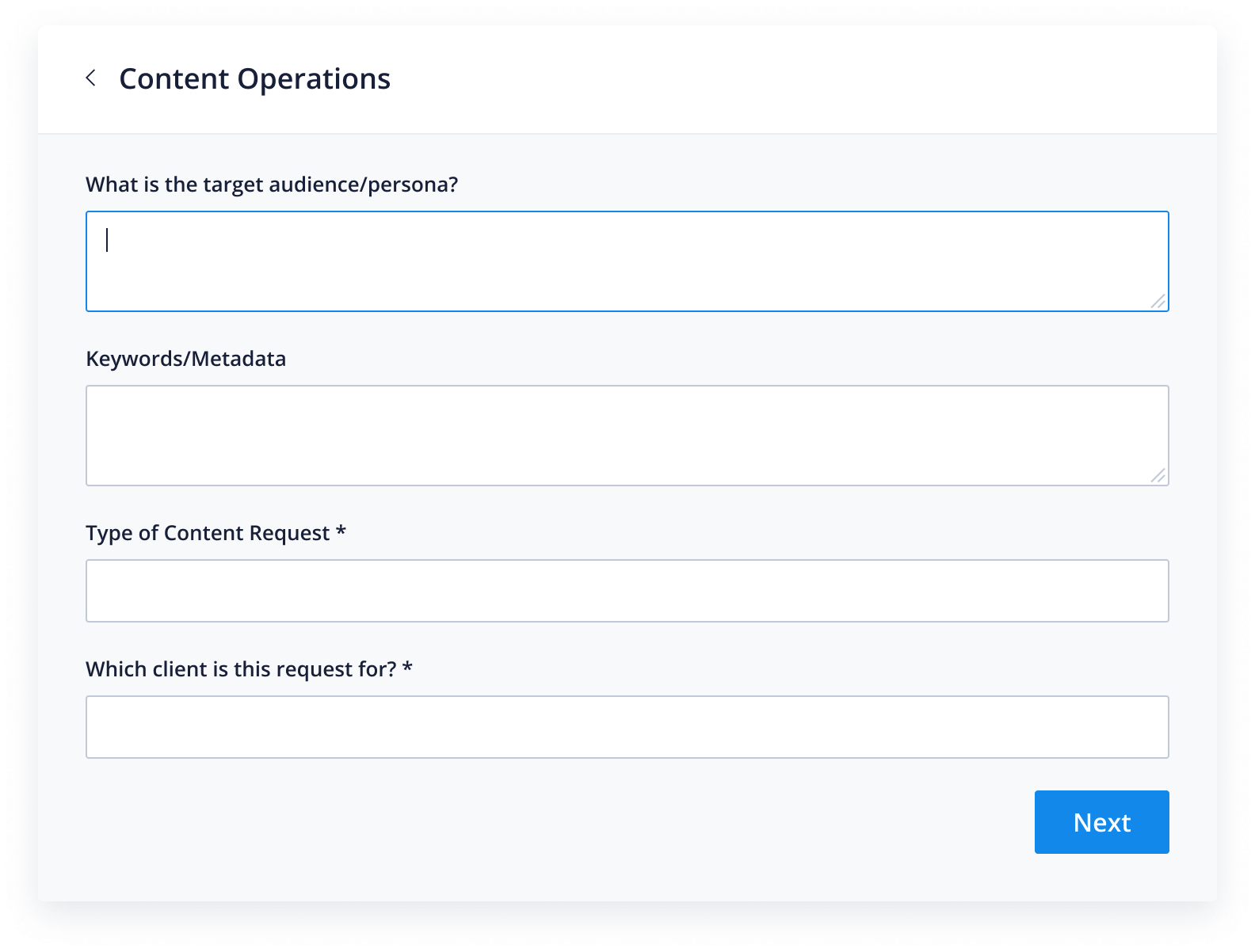
First things first, set up your creative asset request form. Tweak the custom fields to personalize them for your team and ensure you have all the required information.
You can then share the request form with project stakeholders. When someone submits a request, it will automatically appear as a task in your intake folder.
Step 2: Customize your creative workflows
Cross-tag your requests and add them to the relevant folders. You can create separate folders for each client, with subfolders for their individual campaigns.
Use the custom workflow included in the design asset template to create unique statuses for your team, e.g., Requested, In Proofing, and Approved.
Step 3: Visualize your team’s progress
This template also includes three dashboards: Assets Requested, Production Stages, and Project Status. Tailor the widgets to suit your team’s processes.
Monitor the status of multiple creative assets at a glance and identify roadblocks to avoid delays. Switch to a Gantt chart view for extra visibility.
Take a tour of Wrike’s platform
As well as the creative asset management template, Wrike’s platform offers a range of design-focused tools that can help your teams accelerate approval times and deliver faster to clients.
All of the above features can be adjusted to suit your design team’s unique working style. Try Wrike for yourself to experience the benefits of all-in-one project management software.
Resources for design teams
eBook
How to Transform Your Creative Team Into a Real Powerhouse
Blog post
A Guide To Creative Operations Management
Case study
How Wrike Helps Sköna Deliver Creative Projects With Confidence
This template streamlines the creative asset management process, enabling you to easily store digital assets, manage incoming requests, and track project progress.
Wrike’s creative asset management template includes a custom workflow, dashboards, and sample projects and folders.
This template is tailored to professionals working in marketing agencies, including content designers, campaign managers, and SEO specialists.
How to install this template in your account
You can only access this template when you create a new space. You can access the use case templates gallery through the space creation wizard. When you opt to create a new space, the template gallery opens by default.
Click the “+” button in the upper-right corner of your workspace.
Select “Space.”
On the page that opens, hover over the use case you want and click “Preview.” Look for the “Creative production” template in the list (use the search bar if needed).
Now, you can see more information about the use case. Click “Select” to create a space.
Yes, there are.
To use this template, you need to have at least the Business plan or up. Check our plans here.
You must have the required permission to create a public space in your account.
If the template contains account-level custom fields, custom item types, workflows, request forms, or automation, you must have the permission required to create those items.
This template is only available when the workspace language is set to English.
Check the prerequisites above. If you don’t match one of the prerequisites, talk to your space admin or your account owner. If you match all the prerequisites and you still can’t see the “Creative production“ template, feel free to reach out to the Wrike support team.
Unlock the power of Wrike’s templates
Use our smart search tool to explore versatile templates, designed for easy customization and streamlined project management.
Wrike enhances its website search experience using Google's Vertex AI Search and Conversation generative AI service. Users are cautioned that generative AI might produce inappropriate, inaccurate, offensive, or unintended results, and are advised against submitting explicit, harmful, offensive, or illegal content as search input. Neither Wrike nor Google uses your search inputs to train its machine learning models or for advertising purposes, but search activities may be collected and/or stored via cookies in accordance with our Privacy Policy if you previously registered on our website. These cookies can be deleted through your browser settings. Wrike's search service is not designed to be used in connection with your personal data or any sensitive data of any kind, which users must refrain from inputting.