Many of us juggle multiple work requests every day. They keep teams busy and stakeholders satisfied, but if they’re not managed well, they can quickly become overwhelming.
Wrike can minimize this stress by helping you organize your work request flow. You should consider using a work request template if your team struggles with:
Tracking incoming requests
Gathering important details
Prioritizing key tasks
Eliminate these challenges with Wrike’s easy-to-use work requests template.
Store workload requests securely, keeping your email inbox clutter-free
Collect key details upfront by ensuring all relevant data is included before requests are submitted
Categorize requests and prioritize them according to their importance and final due date
Why you need the work requests template
Streamlined requests
Wrike’s work request form template collates multiple requests into a central hub, making it easier to view, understand, assign, and manage each task.
Clearer information
The work requests template can be customized to ensure all key details are included, helping you gauge task requirements and allocate staff resources accordingly.
Better organization
The work request form template from Wrike is fully customizable, so you can label requests by category, priority, and assignee.
The work requests template will help your team stay on top of a busy schedule by sorting, streamlining, and storing work requests. Interested in seeing how it works? Just follow these three simple steps in your Wrike workspace.
Step 1: Organize your work requests
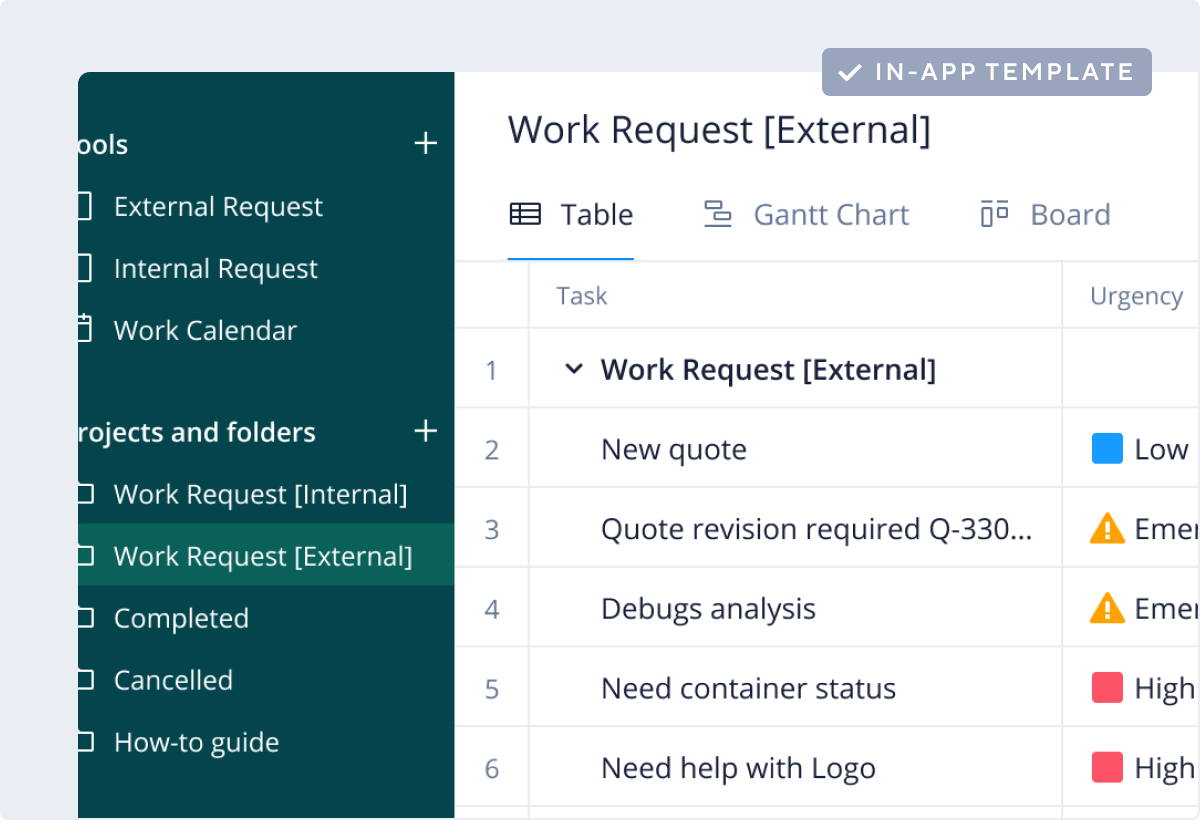
The first step is to enter your Wrike homepage, and click “Create Work Request.” This will open up a folder with a number of subfolders, including Work Request Internal (for colleagues), Work Request External (used by customers or clients), and a handy how-to guide.
Work requests are organized in the folders according to details, urgency, assignee, progress status, and more.
Step 2: Create a custom request form
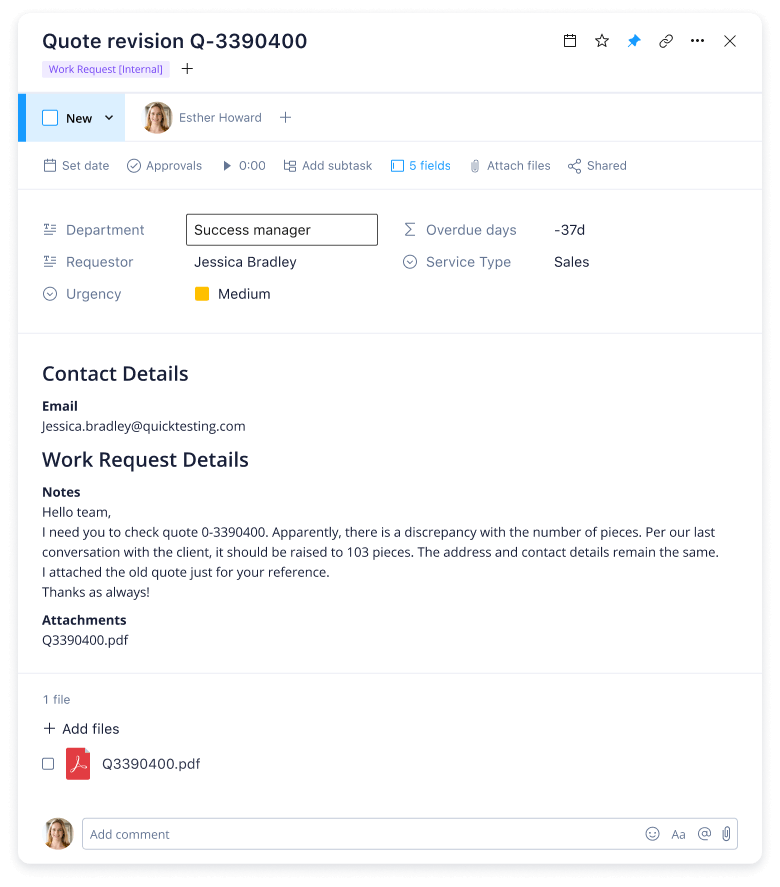
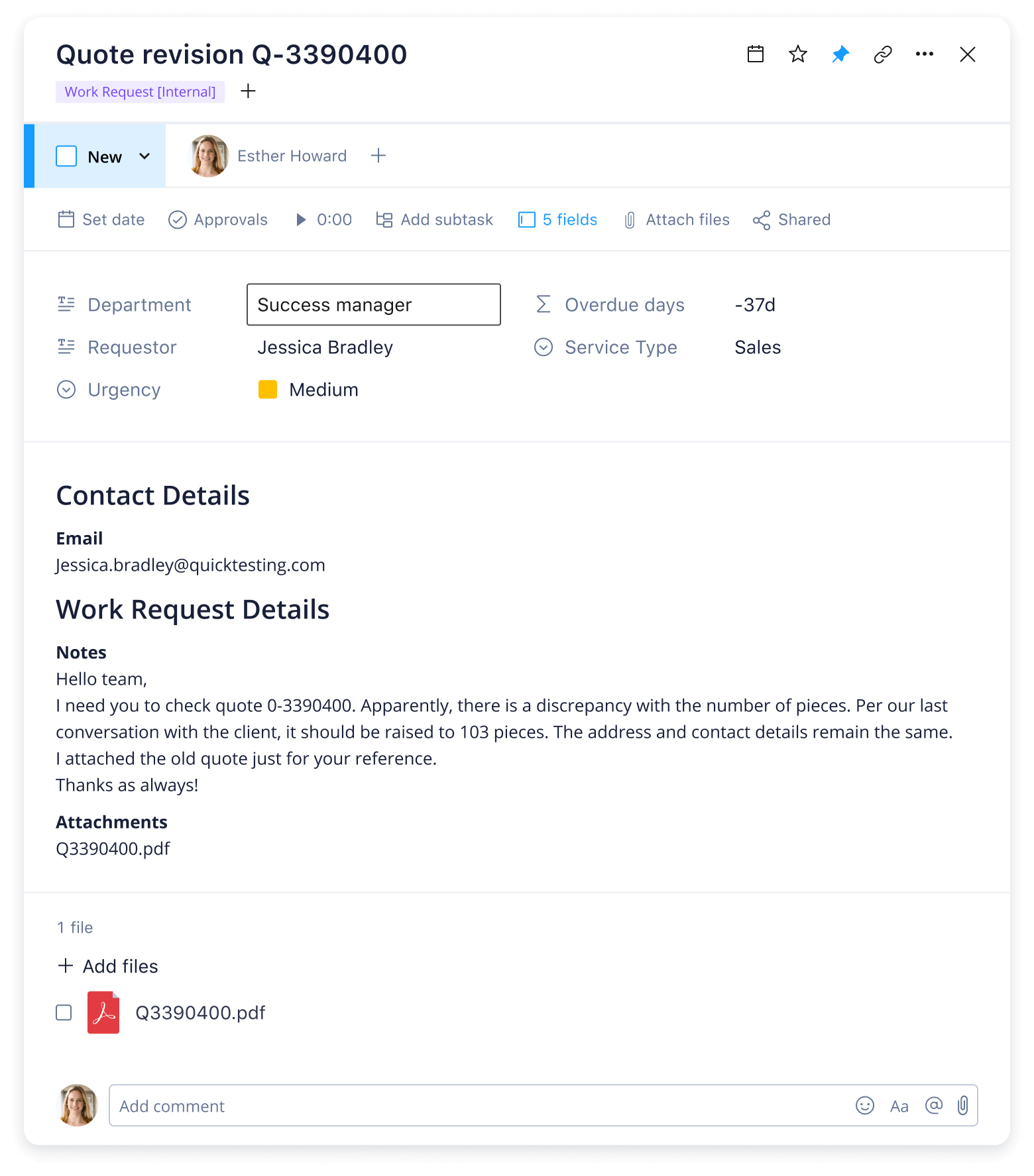
Click the green “+” sign to create a request. That’ll bring you to a page offering two options: Work Request [External] and Work Request [Internal]. Both are designed to collect key information, including name, request type, urgency, and attachments.
You can also add custom fields to this request form to better reflect your own organization’s needs and priorities.
Step 3: Visualize your work request flow
Work requests can be visualized in a list format where overdue dates turn from green to red. You can also use a dashboard or a calendar to help you see upcoming or urgent deadlines at a glance.
Drag and drop requests to different dates, and color-code them to reflect their originators or assignees.
Make Wrike work for you
Wrike provides more than just time-saving templates and expertly designed resources.
Our powerful work management platform offers a range of cutting-edge features that can help you transform your work request process, reduce the risk of overwhelm, and visualize available resources.
Wrike’s dynamic software can be customized to suit your team’s specific needs, helping to smooth collaboration, avoid repetition, and deliver better services, faster than ever.
Resources for service delivery teams
Explore eBooks, blog posts, and more.
Datasheet
Deliver Your Best Work With Wrike’s Professional Services Software
eBook
Collaborative Work Management for Creative Teams: A Buyer’s Guide
Blog post
How to Manage Ad Hoc Requests Before They Derail Your Marketing Team
This template speeds up your work intake process, providing complete control over prioritizing, managing, and tracking work requests.
Yes, if you’re an existing Wrike Business, Wrike Enterprise, or Wrike Pinnacle customer, the work request form template is completely free to use.
Access this template immediately by entering your business email. Not a Wrike user yet? No problem, get started with a free two-week trial today.
How to install this template in your account
You can only access this template when you create a new space. You can access the use case templates gallery through the space creation wizard. When you opt to create a new space, the template gallery opens by default.
Click the “+” button in the upper-right corner of your workspace.
Select “Space.”
On the page that opens, hover over the use case you want and click “Preview.” Look for the “Work requests” template in the list (use the search bar if needed).
Now, you can see more information about the use case. Click “Select” to create a space.
Yes, there are.
To use this template, you need to have at least the Business plan or up. Check our plans here.
You must have the required permission to create a public space in your account.
If the template contains account-level custom fields, custom item types, workflows, request forms, or automation, you must have the permission required to create those items.
This template is only available when the workspace language is set to English.
Check the prerequisites above. If you don’t match one of the prerequisites, talk to your space admin or your account owner. If you match all the prerequisites and you still can’t see the “Work requests“ template, feel free to reach out to the Wrike support team.
Unlock the power of Wrike’s templates
Use our smart search tool to explore versatile templates, designed for easy customization and streamlined project management.
Wrike enhances its website search experience using Google's Vertex AI Search and Conversation generative AI service. Users are cautioned that generative AI might produce inappropriate, inaccurate, offensive, or unintended results, and are advised against submitting explicit, harmful, offensive, or illegal content as search input. Neither Wrike nor Google uses your search inputs to train its machine learning models or for advertising purposes, but search activities may be collected and/or stored via cookies in accordance with our Privacy Policy if you previously registered on our website. These cookies can be deleted through your browser settings. Wrike's search service is not designed to be used in connection with your personal data or any sensitive data of any kind, which users must refrain from inputting.