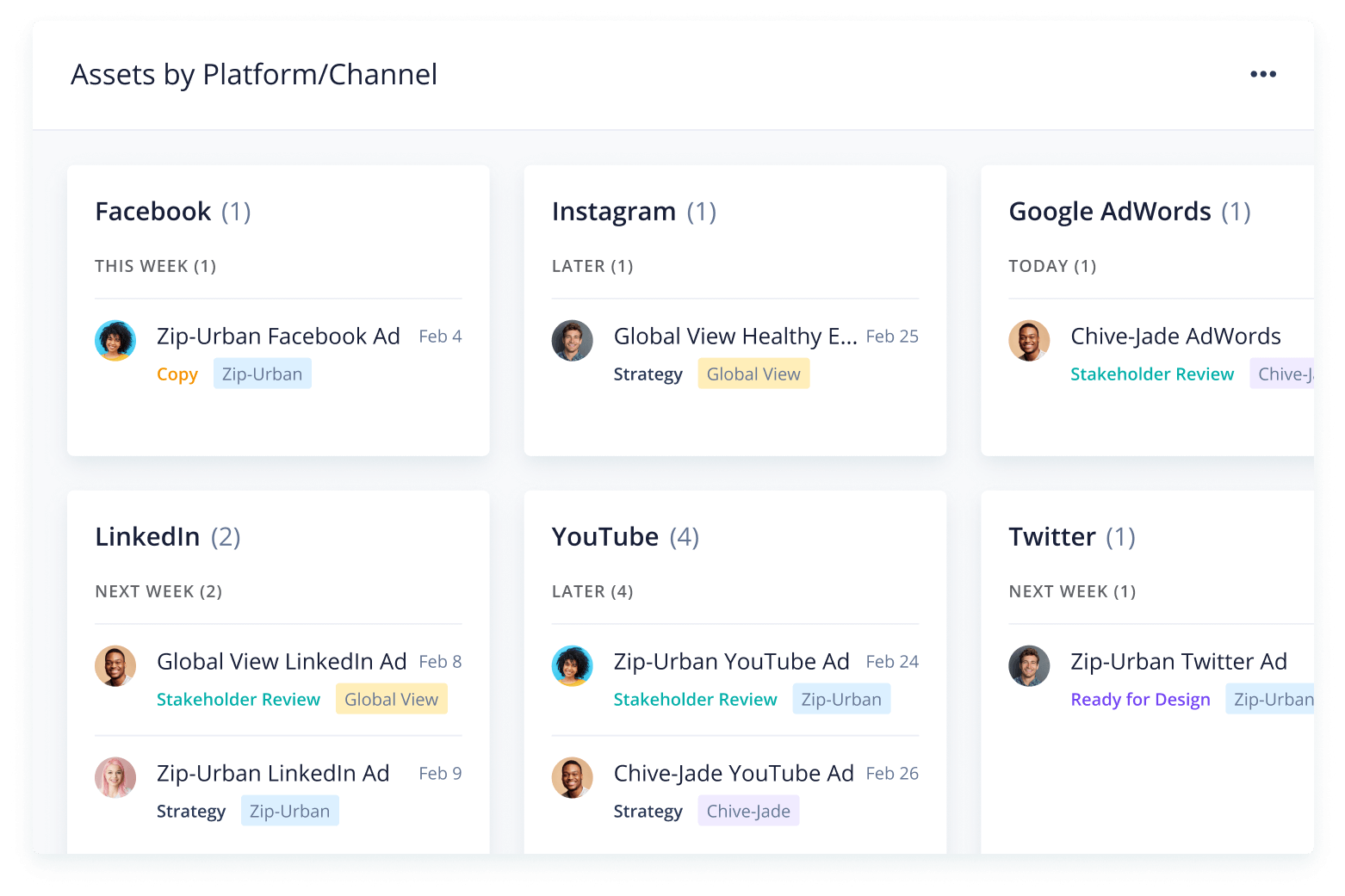
Social media management requires planning and organization, as well as careful monitoring. Without a 360-degree view, clients become frustrated, campaigns are neglected, and ads may underperform.
Social media campaign activities are ad hoc and not delivered effectively for clients
External vendor contracts aren’t managed or organized correctly, resulting in administrative issues
Digital media teams waste time collating data from various platforms
With Wrike’s social media management template, your digital marketing team can easily overcome these obstacles.
Get a bird’s-eye view of campaign data to share with clients in a timely and efficient manner
Visualize campaign information by platform to gain a better understanding of what’s working
See metrics such as cost-per-click or click-through rates at a glance
Why you need this social media management template
Poor campaign visibility
Wrike’s social media management strategy template allows digital marketing agencies to quickly understand the status of campaign activities.
Incomplete communication
Using this social media management report template, data from various social media outlets is pulled into a single platform, improving client communication.
Disorganized contract systems
Our social media management plan template includes a specific contract workflow that details which contracts have been requested, signed, or completed.
Monitor project progress with customized dashboards
Wrike’s social media management template is easy to use. All you need to do is follow these three simple steps:
Step 1: Set up your campaign workflow
This template works hand in hand with the web development template, so requests will be pulled from that template to start your workflow.
Tasks can be set with statuses such as Strategy, Copy, and Design, which give digital media managers a simple visualization of where each project stands.
Step 2: Build your social media content calendars
The social media management template includes calendars that make viewing planned, active, or past social media content easy.
Digital media managers can view content by client or channel to better understand the status of each project.
Step 3: Import external vendor contracts
Managing external vendor contracts with the social media management template is a breeze. Set up the contract dashboard to manage the stages of each of your contracts.
Contracts can be categorized as Requested, Legal or Client Review, or Completed, so social media managers know what contracts need their attention.
Make Wrike work for you
Want to dig deeper? Wrike’s versatile work management software has a range of powerful tools to help you take campaigns from start to finish. Our customizable features include:
Wrike can be tailored to suit any project, team, or organization. Personalize your action plans and design your workspace to match your team’s processes. Our platform is built to work your way — not the other way around.
Resources for marketing agencies
case study
Discover how Sony Pictures Television uses Wrike to give employees the work management tools they need.
guide
Learn all there is to know about marketing project management in our expert guide.
case study
Find out how Marketing Architects employed Wrike to increase productivity and efficiency.
The social media management strategy template is a helpful tool for digital marketing agencies to gain insight into social media campaigns, manage external vendor contracts, and view campaign statuses with automated reports.
Yes, you can use the social media management plan template to see the status of multiple campaigns running across a range of channels.
Wrike’s social media management template includes a host of features to get you started, including pre-built workflows, sample folders, and two calendars.
How to install this template in your account
You can only access this template when you create a new space. You can access the use case templates gallery through the space creation wizard. When you opt to create a new space, the template gallery opens by default.
Click the “+” button in the upper-right corner of your workspace.
Select “Space.”
On the page that opens, hover over the use case you want and click “Preview.” Look for the “Social Media” template in the list (use the search bar if needed).
Now, you can see more information about the use case. Click “Select” to create a space.
Yes, there are.
To use this template, you need to have at least the Business plan or up. Check our plans here.
You must have the required permission to create a public space in your account.
If the template contains account-level custom fields, custom item types, workflows, request forms, or automation, you must have the permission required to create those items.
This template is only available when the workspace language is set to English.
Check the prerequisites above. If you don’t match one of the prerequisites, talk to your space admin or your account owner. If you match all the prerequisites and you still can’t see the “Social Media“ template, feel free to reach out to the Wrike support team.
Unlock the power of Wrike’s templates
Use our smart search tool to explore versatile templates, designed for easy customization and streamlined project management.
Wrike enhances its website search experience using Google's Vertex AI Search and Conversation generative AI service. Users are cautioned that generative AI might produce inappropriate, inaccurate, offensive, or unintended results, and are advised against submitting explicit, harmful, offensive, or illegal content as search input. Neither Wrike nor Google uses your search inputs to train its machine learning models or for advertising purposes, but search activities may be collected and/or stored via cookies in accordance with our Privacy Policy if you previously registered on our website. These cookies can be deleted through your browser settings. Wrike's search service is not designed to be used in connection with your personal data or any sensitive data of any kind, which users must refrain from inputting.