


Key takeaways:
- What are the main challenges of document workflows? Document workflows face challenges with volume, security, versioning, and storage, depending on the team and industry, which necessitate dedicated software solutions.
- How does Wrike enhance document management? Wrike simplifies document creation, collaboration, approvals, and storage, making it a strong option for teams that manage document workflows within broader projects and processes.
- What are the key features of effective document workflow software? Core features include structured initiation, secure collaboration, approval workflows, and logical storage, with additional specialized features depending on use case and industry.
- How can automation improve document workflows? Automation in Wrike minimizes manual tasks, enhances efficiency, and reduces errors throughout the document lifecycle. This is especially true for growing teams managing high volumes of documents on a daily basis.
- Why should anybody choose Wrike for document workflows? Wrike offers customizable workflows, enterprise-level security, and integrations, making it a comprehensive solution for scalable document management.
When you’re struggling with a high volume of documents, messy approvals, or lost files, it’s definitely time to look for document workflow software. Unfortunately, finding workflow software that’s actually designed for document workflows can be a task in itself.
That’s because document workflow software is a broad category that covers many different tools and use cases — including creating documents, generating approvals, processing scanned files, managing knowledge bases, and providing legally binding signatures.
What works for a marketing team may be completely wrong for a legal team, government organization, or regulated industry with strict compliance requirements.
Document workflows also come with specific challenges, including:
- Volume, when a high number of documents demands reliable templates and watertight processes to maintain your high standards.
- Security, to protect the sensitive data in documents like contracts, proposals, and financial reports.
- Versioning, as document sharing creates plenty of opportunities for crossed wires.
- Storage, to ensure you can recall your documents when you need to refer to them later.
- Industry-specific requirements, such as legal compliance, audit trails, or government security standards.
This guide breaks down the 10 best document workflow software tools for different use cases, so you can compare options designed for approvals, document processing, collaboration, compliance, and more — and find the right fit for your team’s specific workflows and industry.
Key features of document workflow software
Unlike some of the other workflows you’ll use as you manage projects, document workflows usually rely on the same specific tools at each stage.
The best document workflow software combines these tools so you can produce consistent, compliant work without jumping between different apps.
- Initiation: If document workflows have one advantage, it’s that they’re easy to kick off with a template. But even when that template is foolproof, you’ll need a system to gather and enter your data if you want your workflow to start smoothly.
- Execution: Document workflows are collaborative, often relying on input from different specialists on your team. To manage this without introducing errors into your work, you’ll need a clear, secure strategy for file sharing within your workflow.
- Approval: When your document nears the finish line, you’ll likely check it against your criteria, note the feedback for auditing and performance checks, and maybe even send it for a signature. All of these approval workflow stages can create bottlenecks without the right tools.
- Closing: Perhaps more than any other type of workflow output, your final documents need to be stored logically at the close of the process. This maintains your records and creates a paper trail. All good document workflow software should include ways to route your files automatically so you can standardize this process.
This aligns with how we think about document workflow management across the full document lifecycle.
However, while these stages represent core capabilities many teams rely on, different tools can support very different feature sets — and some teams may need more specialized functionality depending on their industry, document types, or compliance requirements.These core features are what many teams rely on, but different workflows and industries may require additional, specialized capabilities. Beyond the fundamentals, some teams also need niche capabilities, such as optical character recognition (OCR) and data extraction for scanned documents, legally binding e-signatures, or compliance and audit controls for regulated workflows.
10 best document workflow software tools for different use cases
There’s no single “best” document workflow tool for every team. Some platforms are built for approvals and version control, while others focus on e-signatures, compliance, or processing scanned documents.
The tools we list below include specific use cases so you can quickly compare options designed for different document workflows and choose the right fit for your team’s needs.1. Wrike: Create custom workflows for all your documents
Wrike is a versatile, customizable work management platform with all the features to build, manage, and monitor your document workflows. If you work with concurrent, overlapping, or complex document workflows, Wrike has the power and flexibility to boost your productivity and keep your work on track.
Below, I’ll explain how.

Streamline document creation with templates
When you manage a large number of documents, especially in different formats, you need a process that speeds up your work without compromising on quality.
One of the easiest ways to do this is by creating templates for the types of documents you regularly work with. While it’s possible to build fillable, branded document templates in everything from Google Docs to Adobe Creative Suite, a template document task in Wrike will support you even after you’ve created and entered your data, streamlining the entire process.
Think of it this way: each upcoming document could exist as a line in your to-do list. You can open the template, make a copy, enter the data, convert it to a PDF, and share it by email. But in contrast, a document task in Wrike gives you:
- A task card to track through your workflow stages, for example, on a Kanban board that shows all your upcoming tasks.
- Quick access to the latest version of the document, which is always attached to the card.
- An overview of the upcoming tasks and deadlines for the document.
- An easy method of contacting the team member responsible for the document at each stage of the workflow, without duplicating the file or even leaving Wrike.
These templated document workflows give you complete visibility into the entire process and help you schedule your workload more accurately. Plus, when you manage all your documents with the same standard system, you can tweak your method when you notice areas for improvement.
Find out more about creating custom item types for document workflows.
Power smooth collaboration between all your team members
When your documents require input from different team members or departments, Wrike keeps you on the same page. Instead of sharing different versions of the file by email — and all the delays and confusion that can cause — you can view the latest document in real time in one shared workspace. This centralized workflow system keeps everyone aligned around the same source of truth.
This is made possible with a feature we call cross-tagging. When a task or file is cross-tagged, it can exist in multiple areas of your Wrike workspace without being duplicated. This ensures that anyone who needs access can retrieve it without delays. Any edits or comments made are immediately visible to everyone with access, keeping the entire team aligned and up to date.

Wrike also helps you collaborate with powerful, real-time editing tools and integrations. For example, when you download the Wrike Document Editor, you can make changes to the files attached to your task cards without leaving Wrike. There’s no need to download, edit, save, and upload with a new name — just open the document in Wrike, check the latest progress, and go.
This streamlined system eliminates the frustration of editing together. Even if your team works in different locations and time zones, you feel like you’re working side by side.
Create seamless approval workflows for all your documents
Toward the end of any workflow, you’ll need to check and rubber-stamp your work, or send it to someone else with the authority to sign off.
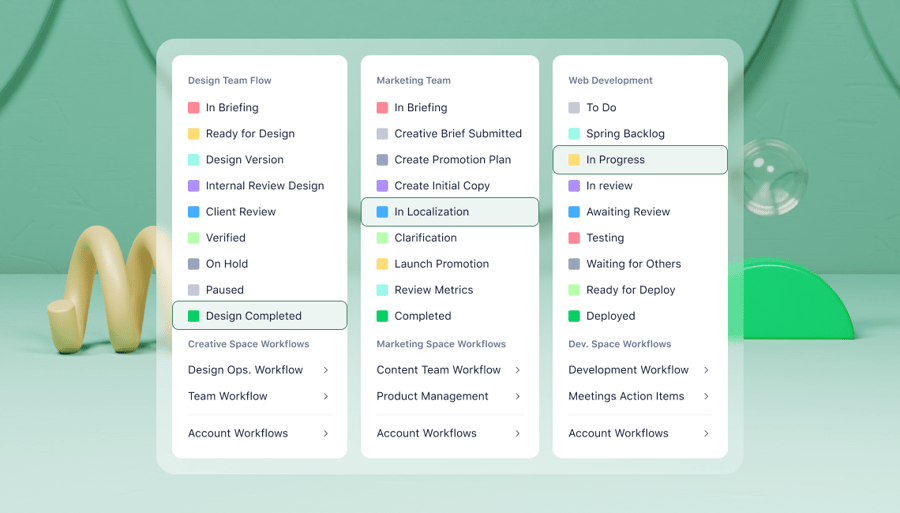
With Wrike, you can create a custom approval workflow with as many stages as you need to create the final version of your document. By granting approval authority to certain team members or job roles and delegating document tasks to them, you establish clear accountability for the final stages of your workflow and ensure that none of your tasks are overlooked throughout the approval process.
Whenever a document is ready for approval, it appears in the approver’s workload overview dashboard. This helps them prioritize and plan their work efficiently. The task card lets them view the document, suggest changes, discuss the job, or simply approve it with a single click.

For example:
- The Marketing Architects team took their approval time from one day to 20 minutes
- The OSF Healthcare team are completing their tasks 50% faster
- Aerotek shaved a week and a half off its planning cycle
Even if your approval workflow involves sending documents to people outside Wrike, it’s easy to share your files and get them signed off. By integrating your email, your requests will land in their inbox, and their responses will appear automatically as comments on the task card.
Find your documents in seconds
For teams handling a large number of digital documents, organization is key. With a completely customizable, shareable folder structure, Wrike can keep all your document workflow outcomes in check.
Your Wrike workspace includes shared spaces, folders, and subfolders, all nested neatly inside one another to make it quick and simple to find your documents in the hierarchy. To give a real-world example, your recruitment space could contain folders for each department and subfolders for job roles with applications, contracts, and onboarding documents.
When you complete your work on a document-based task in Wrike, you can send it straight to the appropriate folder, where it can be accessed by anyone with permission to view the folder contents. This makes it incredibly easy to recall the file when you need it later.
However you store your files, every Wrike plan offers enterprise-grade security. Wrike is HIPAA, GDPR, and CCPA-compliant; your data is continuously backed up and encrypted; and you can change permission levels in your workspace whenever you need to.
Bonus: Cutting-edge document workflow automation
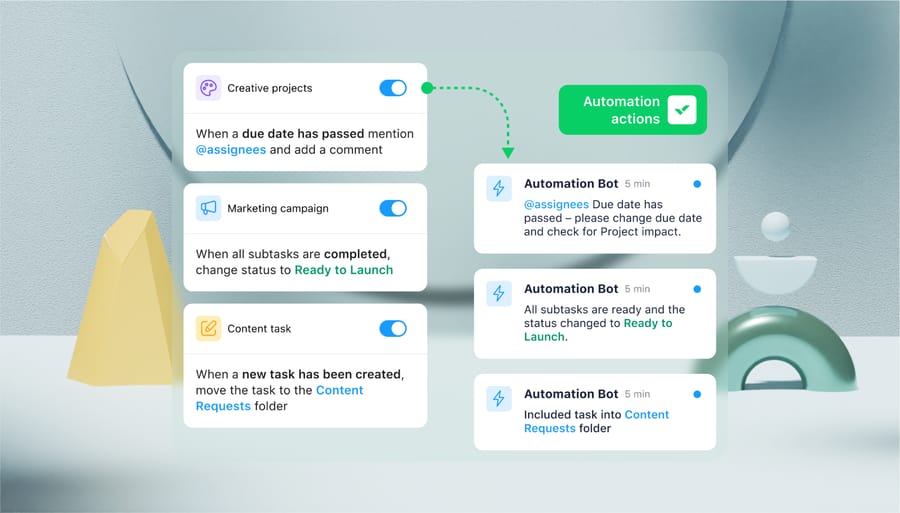
When you’re comparing your software options, it’s also vital to recognize what workflow automation can bring to the table. From initial data entry to final routing, document workflows can be manual and laborious. Automating your workflow stages saves time and reduces the number of errors that creep into your process. Wrike’s Work Intelligence® features make it easy to identify opportunities to automate your processes and implement automated workflows with just a few clicks. You can use, for example:
- Generative AI for document creation: From editing content to match your brand’s tone to creating project plan documents from your meeting notes, Wrike can build your first document draft fast.
- Dynamic request forms: By extracting data from your intake forms and automatically kicking off a workflow tailored to the task, Wrike can save you valuable time at the beginning of each new workflow.
- Automated reminders: Wrike automatically reminds your team when their documents are due and notifies them when their input is requested, reducing the need for internal emails and status meetings by as much as 90%.
- Instant routing to your project folders: Close your workflows with confidence, as your final approval routes your files automatically to the correct folder in your Wrike workspace.
- Automation suggestions for continuous improvement: Based on your historical performance and work patterns, Wrike helps you identify even more opportunities to automate your workflow and produce your next documents more efficiently.
With Wrike’s exhaustive list of third-party app integrations, you can bring all the tools you use directly into your workflow stages. When you close the gaps in your process, you can work more efficiently, securely, and consistently across all the document workflows you create.
Read more about Wrike’s document workflow automation.
Wrike pricing:
Wrike has pricing plans for every team. Whether you’re just getting started or you’re ready to work with the most advanced enterprise tools, you can try free for 14 days, with no credit card required.
- Free plan: For unlimited users
- Team plan: $10 per user, per month
- Business plan: $25 per user, per month
- Pinnacle and Apex plans: Custom pricing
Wrike is used daily by global companies such as Electrolux, NVIDIA, and Walmart Canada. Join more than 20,000 organizations and over 2.4 million users and find out how Wrike can optimize your business processes today.
While Wrike is the most robust, all-encompassing solution, some document workflows can be upgraded without switching to an entirely new work management system. If you’re not in a position to change your software stack or if you only need a patch for one part of your document workflow (like e-signatures or collaborative editing), you could also consider the following tools.
2. Docusign: Secure e-signatures to close your document workflow
Many document workflows end with sending the file to a stakeholder for remote signature. Docusign is one of the leading e-signature platforms on the market, making it faster and more secure to close your document workflows. It’s synonymous with sign-offs, and in recent years it has expanded into plans that meet the specific legal requirements of industries such as real estate.
The platform aims to help you send, sign, and manage contracts in one place. This won’t cover your entire document workflow, but features like identity verification, comments for review and negotiation, and process analysis can help close gaps that might otherwise exist in the final stages of your process.
DocuSign pricing (subject to change):
Here are the headline eSignature plans:
- Personal plan (for individuals): $10 per month (billed annually)
- Standard plan (for small to medium teams): $25 per month (billed annually)
- Business Pro plan: $40 per month (billed annually)
- Enhanced plans: Custom pricing
3. Ziflow: Document approval workflows with automatic version control
Ziflow is an approval workflow tool designed for creative teams. Many of the examples on its website are of images and videos, but it also supports Word and PDF documents. If your documents are designed and typeset (for example, if you produce project proposal booklets for your potential clients with graphs and branding), this tool can also help you pinpoint the corrections before you go to print.
For document workflows, Ziflow’s version management features can take some frustration out of the end stages of your workflows. If you’re viewing an old version of a file, you’ll see a pop-up notification offering to redirect you to the newer version. And, like Wrike, Ziflow stores all the discussions associated with your documents so you can refer back to them later.
The main drawback of this system is that managing complex approval workflows in Ziflow can become comparatively expensive. Even on the Pro plan, you can only include three stages in your workflow process.
Ziflow pricing (subject to change):
- Free plan
- Standard plan: $199 per month (billed annually)
- Pro plan: $329 per month (billed annually)
- Enterprise plan: Custom pricing
4. Avokaado: Integrations and storage for critical documents
Avokaado is a document management software that includes AI automations. The platform focuses on secure document management for contracts, with use cases in procurement, HR, and legal operations. As such, Avokaado integrates with a lot of the other tools these teams will use, including Salesforce and Bamboo HR.
This is a more comprehensive document management workflow tool than some of the others on this list. It gives you a workspace for an overview of your work in progress, along with additional tools for document signing (Avokaado Sign), document management (Avokaado Drive), and managing integrations (Avokaado Connect).
Avokaado pricing (subject to change):
Avokaado’s pricing is broken down into:
- Free trial
- Company workspace
- On-premises solution
But to find out how much you can expect to pay at each pricing tier, you’d have to contact Avokaado to request access, book a demo, or get a custom quote.
5. Dropbox Paper: Collaborative editing and file management
Paper is a newer offering from the file-sharing platform Dropbox. A cloud-based workspace where you can store and work on your documents in one place, it acts as an alternative to Google Drive and Google Docs.
In addition to storage and collaborative editing, Paper lets you create templates for your commonly used document formats, delegate tasks by assigning ownership, and follow files to get updates on their progress. In terms of your confidential documents, Paper has the same level of security as Dropbox (with some limitations). It is, for example, HIPAA compliant.
When you can keep your editing, sharing, storage, and document backup in one account, you can remove several gaps from your document workflow and start to build a central resource for your team.
However, at scale, you’ll need to think seriously about how to structure your folders so you can easily locate your documents. For example, your team might need some training to make sure they’re storing completed files in the correct location in Dropbox.
Dropbox Paper pricing (subject to change):
When you have a Dropbox account (even a free plan), Dropbox Paper is included.
- Professional: $16.58 per user, per month
- Standard: $15 per user, per month for 3+ users
- Advanced: $24 per user, per month for 3+ users
6. DocHorizon: Scanned documents, OCR, and structured data extraction
DocHorizon is a document processing platform that helps teams work with high volumes of scanned or unstructured documents. The tool uses OCR and data extraction to convert documents into structured data that can be exported to tools like Excel, Google Sheets, or downstream business systems.
For teams managing document workflows that begin with physical paperwork or PDF files, DocHorizon is a strong fit. More specifically, finance, operations, and procurement teams can use it to automate intake, extract key fields, validate data, and route information into the systems where the rest of the workflow continues.
The main limitation is that DocHorizon focuses on document processing rather than full workflow management. You may still need separate tools for collaboration, approvals, version control, and long-term document storage once data has been extracted and routed.
DocHorizon pricing (subject to change):
DocHorizon offers custom pricing plans tailored to use case, document volume, and company size. Pricing is available upon request via custom quotes and demos.
7. Notion: Document workflows for internal docs and knowledge bases
Notion is an all-in-one digital workspace where teams can create, organize, and collaborate on internal documentation, SOPs, and knowledge bases. It’s highly flexible, so you can structure content in shared workspaces and databases or connect documents to specific projects and owners.
The platform allows you to create templates for recurring document types, assign owners, leave comments for feedback, and track review stages using properties or simple workflow rules. It’s a useful tool for internal processes like onboarding docs, process documentation, and operational playbooks.
However, Notion may not fully meet the requirements of more complex approval chains or compliance-heavy workflows, particularly if legally binding signatures are involved.
Notion pricing (subject to change):
- Free plan
- Plus plan: $10 per month (billed annually)
- Business plan: $20 per month (billed annually)
- Enterprise plan: Custom pricing
8. M-Files: Compliance-focused document management
If your document workflows are driven by compliance, auditability, or regulatory requirements, M-Files is likely to be one of the standout tools for you. It’s most commonly used in legal, government, and regulated industries, where document handling must comply with strict rules on access, retention, and version history.
The tool organizes documents using metadata, allowing them to be classified and routed based on what they are and where they are in a workflow. For example, “under review,” “approved,” or “archived for compliance.” This structure helps teams enforce consistent naming, automatically apply permissions, and maintain a reliable audit trail as documents move through the review and approval stages.
However, teams may encounter some complexity when using M-Files. It requires additional upfront configuration and process design, and smaller organizations with simple document workflows may find the platform to be more than they need.
M-Files pricing (subject to change):
M-Files offers custom pricing plans only, requiring customers to book a demo for a personalized quote. However, there’s a 30-day free trial available to all first-time users of the platform.
9. SharePoint: Enterprise document governance
For large organizations, document workflows often break down because governance gets messy when teams grow. SharePoint solves that problem by giving enterprises a centralized way to manage documents, permissions, and retention policies across departments.
It can be used as a governed document hub within Microsoft 365, enabling teams already operating within the Microsoft ecosystem to collaborate more easily on documents through Teams and Outlook, while IT applies organization-wide controls for access, version history, and data retention.
To maximize SharePoint’s value, you may wish to involve IT in designing libraries and workflow rules. But teams who prefer more lightweight document workflows might find the setup and ongoing management somewhat heavier than tools designed for smaller groups.
SharePoint pricing (subject to change):
SharePoint is included with most Microsoft 365 business and enterprise plans. Pricing varies by Microsoft 365 tier and user count, with enterprise licensing available for larger organizations.
10. Confluence: Structured documentation for engineering and technical teams
Confluence is a tool often preferred by teams that treat documentation as part of their day-to-day work. It’s typically used by engineering, IT, and product teams that need structured spaces to document technical processes, specs, runbooks, and internal knowledge.
Within Confluence, teams can link documentation to Jira tickets, track updates over time, and keep technical knowledge centralized and searchable. This makes it useful for workflows like documenting system changes, maintaining internal playbooks, and standardizing technical processes across teams.
Keep in mind that Confluence isn’t specifically designed for traditional document approval workflows or for legally binding documents. Teams may find they need to pair Confluence with more specialized document workflow tools for audit trails or contract workflows.
Confluence pricing (subject to change):
- Free plan
- Standard plan: $6.70 per user per month (billed annually)
- Premium plan: $13.20 per user per month (billed annually)
- Enterprise plan: Custom pricing
Secure, reliable document workflows with Wrike
The benefits of document workflow software are clear to see:
- Faster completion rates, as Wrike streamlines your workflow, keeps your team in the loop, and helps to eliminate bottlenecks across project management
- Increased efficiency, as you remove more repetitive tasks and reduce reliance on manual processes during document creation and data input
- True collaboration, as you view, edit, and discuss documents in a shared space
- Quality outputs every time, as you put documents through the same rigorous process and approval checks
- Peace of mind, as you benefit from customizable storage systems, permissions, and data encryption as you share and save your files
With Wrike’s tailored, integrated document workflows, you can build a system that takes you from setup to approval without friction and scales to handle as many different workflows as you need. Find out what Wrike’s market-leading workflow and automation tools can do for your business processes today.
Frequently asked questions (FAQs) about document workflow software
What is document workflow software?
Document workflow software helps teams create, route, review, approve, and store documents using structured workflows, automation, and permissions. The goal of this software is to ensure work progresses without manual handoffs or version loss issues.
How is document workflow software different from document management systems?
Document management systems focus on storing and organizing files, while document workflow software can fully automate how documents move between people, triggering reviews, approvals, signatures, and next steps.
Which teams benefit most from document workflow software?
Teams that collaborate on high volumes of documents benefit most from document workflow software. This includes legal, finance, operations, marketing, and HR teams, as well as any group that regularly relies on reviews, approvals, or compliance workflows.
How do I choose the right document workflow tool for my use case?
To choose the document workflow software that best suits you, start by defining your primary workflow — approvals, signatures, processing scanned documents, or knowledge sharing. Then select a tool built for that use case with the right integrations, security controls, and automation features for your team.
Do regulated industries need specialized document workflow software?
Regulated teams often need specialized document workflow software because they require access to unique features such as audit trails, role-based access controls, retention policies, and compliance reporting, which not all document workflow tools support out of the box.