For a project to perform well, you need to determine each of your goals from the start and decide what actions need to be completed to achieve them.
However, this is easier said than done. You should consider using a deliverables template if you need some help with the following activities:
Identifying deliverable tasks
Boosting task visibility
Monitoring project updates
Wrike’s project deliverables template can overcome these obstacles, enabling you to:
Differentiate between deliverables and non-deliverables
Get a bird’s-eye view of your team’s workload
Track task status to ensure your projects stay on course
Why you need the project deliverables template
Clearer timelines
Use Wrike’s deliverables template to shape your project timeline. Add start and due dates to each of your tasks and monitor their status regularly to ensure on-time delivery.
Better communication
Need to update project stakeholders quickly? Share detailed reports that clearly outline deliverable tasks and their corresponding progress stage.
Seamless collaboration
Stop switching between tabs — Wrike’s project deliverables template has multiple features to help your team collaborate in one place and stay aligned on overall goals.
So, how do you actually use the project deliverables template in your Wrike workspace? All you need to do is follow these three steps.
Step 1: Categorize your tasks
From your Wrike homepage, enter the “Project Deliverables” space. Your folder with sample projects will appear on the left-hand side — select one to open it up.
Now you’re in the project table view, you can separate your deliverables from non-deliverables. Click the three dots on the top-right of your screen and select “Manage Custom Fields.” Select “Deliverable Tasks,” which will appear as a checkbox column, enabling you to clearly mark deliverables.
Step 2: Visualize your deliverables
Next, you can head to the pre-built “Project Deliverables” dashboard. Two widgets will appear: “Deliverables” and “All Other Tasks.”
If you mark a task as a deliverable, it will automatically appear in the left widget. If not, it will be placed in the right one.
Step 3: Get a full project overview
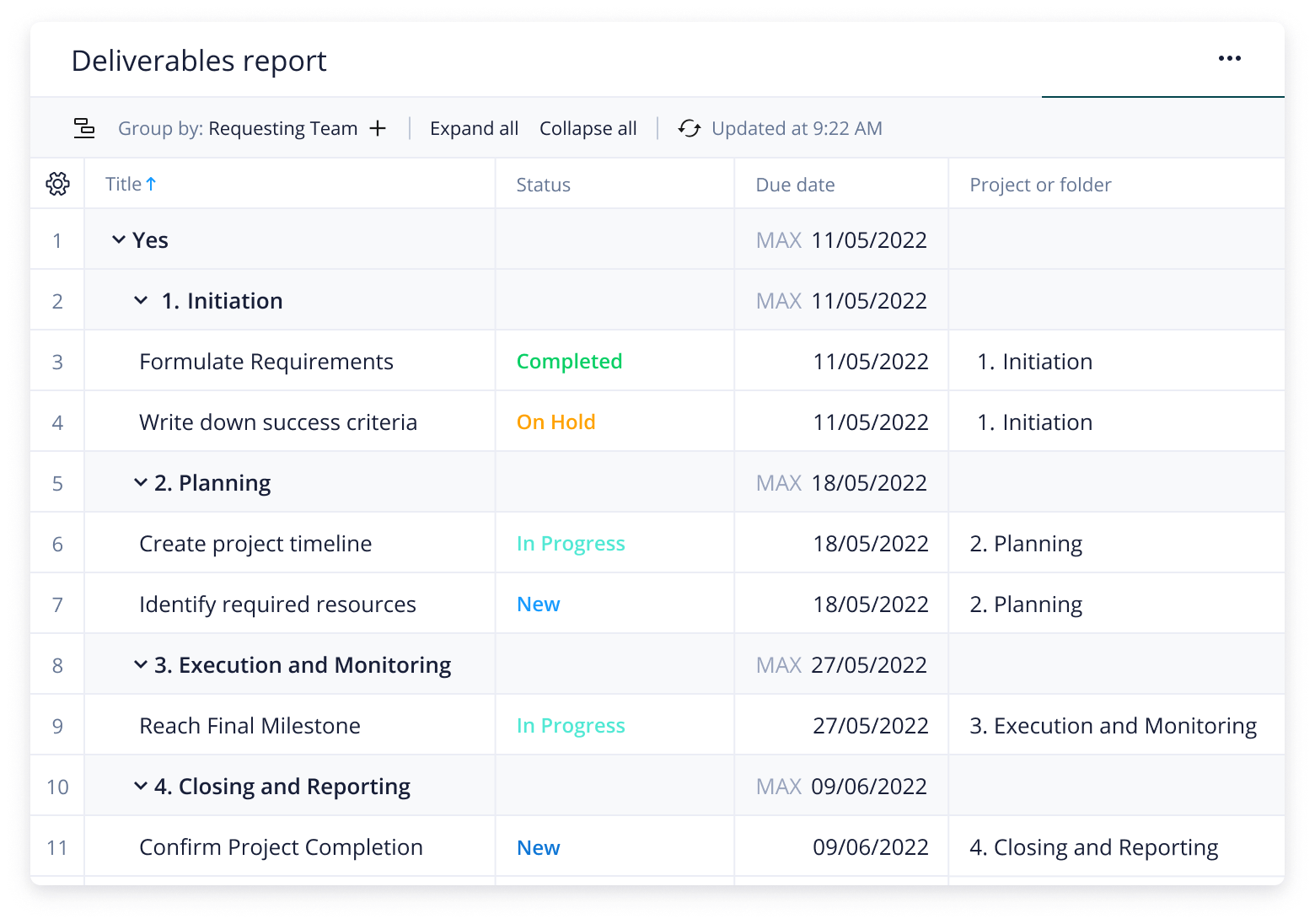
For a more detailed summary of your tasks, head over to the “Deliverables Report.”
Here, you will see the corresponding projects and folders to which the tasks belong, as well as start dates, due dates, and task statuses.
Explore Wrike’s versatile platform
Once you’ve mastered the project milestones and deliverables template, you can start exploring the other benefits Wrike has to offer.
Our award-winning work management platform has plenty of features to help you control your intake, visualize your progress, and tailor your team’s processes. These include:
Wrike’s flexible software can be adjusted to suit your team’s specific needs. Enjoy effortless collaboration and use your extra time to focus on ensuring high-quality output.
Resources for service delivery teams
Case study
How the Texas Rangers Use Wrike to Deliver Home-Run Campaigns
Datasheet
Deliver Your Best Work With Wrike’s Professional Services Software
Blog
How to Totally Nail Your Project Delivery Timeline
This template helps service delivery teams to effectively separate their task list into deliverables and non-deliverables so they can accurately assess their project outputs.
Wrike’s project management deliverables template includes a pre-built dashboard and report, as well as sample custom fields, folders, and projects.
Yes, the product deliverables template is free and available to existing Wrike Business, Wrike Enterprise, and Wrike Pinnacle customers.
Simply enter your business email to get started. If you don’t have a Wrike subscription, you can sign up for a free two-week trial today.
How to install this template in your account
You can only access this template when you create a new space. You can access the use case templates gallery through the space creation wizard. When you opt to create a new space, the template gallery opens by default.
Click the “+” button in the upper-right corner of your workspace.
Select “Space.”
On the page that opens, hover over the use case you want and click “Preview.” Look for the “Projects deliverable” template in the list (use the search bar if needed).
Now, you can see more information about the use case. Click “Select” to create a space.
Yes, there are.
To use this template, you need to have at least the Business plan or up. Check our plans here.
You must have the required permission to create a public space in your account.
If the template contains account-level custom fields, custom item types, workflows, request forms, or automation, you must have the permission required to create those items.
This template is only available when the workspace language is set to English.
Check the prerequisites above. If you don’t match one of the prerequisites, talk to your space admin or your account owner. If you match all the prerequisites and you still can’t see the “Projects deliverable“ template, feel free to reach out to the Wrike support team.
Unlock the power of Wrike’s templates
Use our smart search tool to explore versatile templates, designed for easy customization and streamlined project management.
Wrike enhances its website search experience using Google's Vertex AI Search and Conversation generative AI service. Users are cautioned that generative AI might produce inappropriate, inaccurate, offensive, or unintended results, and are advised against submitting explicit, harmful, offensive, or illegal content as search input. Neither Wrike nor Google uses your search inputs to train its machine learning models or for advertising purposes, but search activities may be collected and/or stored via cookies in accordance with our Privacy Policy if you previously registered on our website. These cookies can be deleted through your browser settings. Wrike's search service is not designed to be used in connection with your personal data or any sensitive data of any kind, which users must refrain from inputting.