
The Dashboard Has Become More Descriptive and Convenient

Published by Valerie   |  Thursday, 03 July, 2008
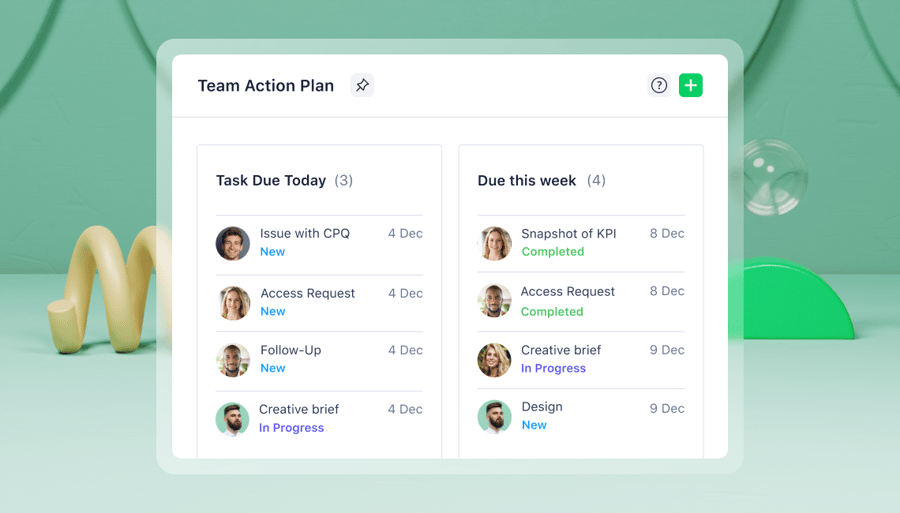
We recently improved the dashboard interface, so it allows you manage your tasks easier and faster. The dashboard displays the tasks assigned to you that are overdue or due within a week.

So you can easily decide what task to tackle first, the dashboard contains the information regarding the task priority, due date or how many days it is overdue. Additionally, parent folders are shown near each task, so you can quickly get the context of the task.

The dashboard allows you to manage tasks the following ways:

1) Mark the task as completed by clicking on the check box on the left of the task name.


2) Reschedule the task by clicking on the pencil icon. Once the changes are made, hit the “Save” button.


3) Delete the task by clicking the recycle bin icon on the left of the task name.

4) View other task details, such as description, attachments, etc., by clicking on the task title.
Category: , ,
  • Email to a friend
  • reddit
  • StumbleUpon
  • Digg
  • myspace
  • facebook
  • del_ico_us

Expand All Folders on a Timeline with a One-click Action

Published by Valerie   |  Wednesday, 02 July, 2008
Today, we would like to delight you with a very handy feature. Now you can expand and collapse all your timelines with a one-click action. Once you click on the appropriate icon, all subfolders within a selected folder expand to show all its tasks on a timeline. The same applies to the way you can collapse all folders displayed on a timeline. Simply click on the icon with the upward arrow to collapse all folders.

For new users, by selected folder we mean a folder that you select in the left pane of your workspace.
Category: ,
  • Email to a friend
  • reddit
  • StumbleUpon
  • Digg
  • myspace
  • facebook
  • del_ico_us

Enhanced Way To Update Your Tasks in Wrike Via E-mail

Published by Valerie   |  Friday, 20 June, 2008
Wrike’s e-mail integration works in two ways:
1) you can CC your e-mails to wrike@wrike.com to create tasks and
2) if anyone updates a task, you receive an instant e-mail notification about the changes.

We continuously improve Wrike’s Intelligent E-mail Engine, so you can save even more time. Recently, we released a way to create tasks from e-mails while turning off the feature that would invite the recipients to Wrike. Previously, we introduced processing of e-mail replies. It allows you to update a task by replying to someone’s e-mail that was CCed to wrike@wrike.com. However, many of our users wanted to update tasks by replying to their own e-mails. Therefore, we released this feature today.

Now, your task is automatically updated in Wrike if an email with a CC to wrike@wrike.com contains “RE” or “FW” in the subject. The system searches for the task by subject in the indicated folder and updates the tasks' description. If the task has already been moved to another folder, the system searches for the task within your entire workspace. If several duplicate tasks are found, Wrike asks you to choose the correct task and update it manually.
 
Besides the description, you can also update other task properties:
  • Status. Indicate the desired status of the task in the subject line of your e-mail. Simply add the proper tag in the square brackets to update the task’s status: [completed], [active], [deferred] or [postponed].
  • Due date. If you change the date in square brackets in the subject line, the tasks’ due date is updated.
  • Priority. If you change the priority of your e-mail, the tasks’ priority is updated.
  • Responsible person. If the system gets an e-mail with “FW” in the subject, it reassigns the task to the e-mail recipient.
This way, Wrike works whether you reply to someone’s e-mail or your own e-mails. Stay tuned; we are working on processing replies to Wrike’s e-mail notifications.
Category: ,
  • Email to a friend
  • reddit
  • StumbleUpon
  • Digg
  • myspace
  • facebook
  • del_ico_us

Wrike helps Canadian student Formula team build a racing car

Published by Daria   |  Friday, 20 June, 2008
Any project team, ranging from software developers to student groups working on a school project, has to face tough challenges of deadline pressure, tight budgets and collaboration organization. Organizing harmonious project work can be particularly hard if the project includes lots of sub-projects and small action items that need to be structured.

The Canadian EPM student team is building an original racing car from scratch to participate in the next Formula SAE competition. A well-coordinated team effort is vital for them. The project implies a complex set of tasks, assigned to different team members. The whole workload could turn into chaos without a proper online project management system.

The student team made the right choice by making Wrike their project management software. Read the full story about EPM’s Formula SAE team using Wrike, and find out what its main benefits are.
Category: , ,
  • Email to a friend
  • reddit
  • StumbleUpon
  • Digg
  • myspace
  • facebook
  • del_ico_us

BCC Your E-mail To wrike@wrike.com And Control the Automatic Invitation of the Recipient to Wrike

Published by Valerie   |  Wednesday, 18 June, 2008
By default, when you CC an e-mail to wrike@wrike.com, the task is instantly created in Wrike and shared with the e-mail recipient. You and the email recipient can work on the task together. If one of you updates the task, the other person become instantly aware of the task progress, thanks to email notifications.

If the recipient is not a Wrike user yet, he or she gets an automatic invitation to Wrike. It is very convenient because you are freed from the additional job of inviting people on your own. Wrike does it for you.

Our users love this feature, especially when they want to show the progress of the task associated with the client’s projects. You just need to CC an e-mail with a task to a client, so that he or she can view the progress.

However, some users were slightly worried that some clients might find this feature unnecessary. After multiple customer requests, we have introduced a way to create a task from an e-mail while turning off the feature that would invite the recipients to Wrike and share the task with them.

For example, you may want to keep track of a lead with the help of Wrike without inviting the client to share the task.  So you simply send an answer to a client’s request for proposal and BCC the e-mail to wrike@wrike.com. The task is created in Wrike and is not shared with the client.


Certainly, when necessary, you can easily invite the client to join Wrike, so he or she can keep track of the project progress. To do so, simply type the person’s e-mail in the “shared with” field. Read more about how to share a task and how to share a folder

Category: , ,
  • Email to a friend
  • reddit
  • StumbleUpon
  • Digg
  • myspace
  • facebook
  • del_ico_us

Wrike Wins 2008 eWEEK Excellence Award in the Productivity Applications Category

Published by Valerie   |  Thursday, 12 June, 2008
The eWEEK Excellence Awards program’s aim is to point IT buyers to the most promising new enterprise products and technologies. eWEEK Editors have made their picks for the best of the best in each of the Excellence Awards categories. On June 9, 2008 the winners were named. Wrike, the leader in on-demand project management, has won the award in the Productivity Applications category.

“It is exciting for us that Wrike has been recognized as a service that raises the technology bar,” said Andrew Filev, CEO at Wrike. “We use the principles of Enterprise 2.0 to transform the notion of project management software and dramatically increase the productivity of our customers.”

Besides Wrike, the products of Sun Microsystems, Adobe, Netuitive, IBM, Salesforce.com, Fujitsu and Hewlett-Packard were among the eWEEK’s 8th annual Excellence Awards program finalists.

Download the official press release.
Category: , ,
  • Email to a friend
  • reddit
  • StumbleUpon
  • Digg
  • myspace
  • facebook
  • del_ico_us

View Your Active Tasks in Your Favorite Calendar Software

Published by Valerie   |  Thursday, 05 June, 2008
We are working hard for you to help you become more organized and productive. That is why we have added a new feature to Wrike – the iCalendar export.

iCalendar is the open standard for sharing calendar data. It allows you to access your tasks from a variety of software programs, including Microsoft Office Outlook, Apple iCal, Google Calendar, and Mozilla Sunbird. Once you subscribe to the iCalender feed, tasks get updated in your calendar, if any task is rescheduled in your Workspace in Wrike. The frequency of those updates depends on your calendar settings. In case with Outlook, calendar gets updated as often as you receive emails.


You can export tasks from all folders at once or from a specific folder. To subscribe to iCalendar feed of all folders, click on the iCal icon in the right upper corner of your Wrike workplace, when “My Folders” is open. By doing this, you export all active tasks assigned to you to your calendar.


If you want to subscribe to iCalendar feed of a specific folder, click on this folder in the left pane to open, and then click on the “iCal” link. All the tasks from this folder and its subfolders are transported to your calendar.
Category:
  • Email to a friend
  • reddit
  • StumbleUpon
  • Digg
  • myspace
  • facebook
  • del_ico_us

Wrike Was Chosen a Finalist in the 8th Annual eWEEK Excellence Awards

Published by Valerie   |  Wednesday, 04 June, 2008
eWEEK Excellence Awards eWEEK Excellence Awards program is a contest annually held by eWeek magazine. The program recognizes products and services that raise the technology bar. This year, Wrike was submitted in the productivity category and was chosen a finalist in the eWEEK Excellence Awards VIII.

The 8th annual eWEEK Excellence Awards has been organized to give enterprise IT professionals a comprehensive benchmark for assessing noteworthy enterprise technology products and services. The nominees' products demonstrate innovation and integrate cutting-edge technologies, and at the same time help enterprises address their security and budgetary concerns.

Wrike applied to the Productivity Applications category, because Wrike’s aim is to make people and organizations more productive with the help of its unique project management software.

The judges are eWEEK editors, eWEEK Labs analysts and eWEEK Corporate Partners, senior enterprise IT professionals, who act as reader advisers to eWEEK's editorial staff. They evaluate Wrike as well as other nominees on the following criteria:
  • Innovation
  • Practical integration of emerging technologies
  • Suitability to task
  • Cost effectiveness
  • Potential for helping companies create business efficiencies
  • Manageability
  • Potential for helping companies develop competitive advantage
  • Secureability

After culling through hundreds of entries, the eWeek jury has announced the finalists. Being an eWEEK Excellence Awards VIII finalist is a comprehensive benchmark proving the product’s quality and the company’s commitment to innovation and to clients needs. We are excited about this appreciation; continue working hard to release new productivity features though. 

Stay tuned: the winners to be announced on June 9.
Category: ,
  • Email to a friend
  • reddit
  • StumbleUpon
  • Digg
  • myspace
  • facebook
  • del_ico_us

How You Can Email a Task into a Subfolder

Published by Valerie   |  Thursday, 22 May, 2008
We are often asked ask about how to email a task into the hierarchy in the Wrike workspace. There is a very simple way, which some of our users intuitively use.

If you want to email a task into a subfolder with the unique name, you can simply add the folder's name to the subject line of your email.


If there are several different folders with the same name in different parts of your Wrike workspace, you will need to provide a complete path to the subfolder. In the example, [folderA/subfolder] will put the task in the right place.


Category: ,
  • Email to a friend
  • reddit
  • StumbleUpon
  • Digg
  • myspace
  • facebook
  • del_ico_us

Links to Tasks Are Now Available At Wrike

Published by Valerie   |  Thursday, 22 May, 2008
Now there is an easy way for you to send someone a link to a task. You simply right-click on the appropriate link in the right upper corner of the task details and select “Copy link location.”


Once you get a link to the task, you can send it to a person or insert the link in the description of other tasks. That is very convenient if you track bugs with the help of Wrike. You can refer to tasks when trying to identify and resolve the issues.

Category:
  • Email to a friend
  • reddit
  • StumbleUpon
  • Digg
  • myspace
  • facebook
  • del_ico_us
Older posts